Editing a deck
How to create a flashcard deck, paste a card list, write cards by hand with an image or a recording, let AI prepare them, and set the practice direction.
On this page7
In the deck editor you prepare the cards and set up the deck. There are three ways to add cards: paste a list, write them by hand, or use AI. What happens with the deck next, how to assign or offer it to students and what you see of their progress is in Flashcards.
A new deck
- Open Flashcards and click New deck.
- In the “Deck settings” panel on the right, fill in the “Name”, for example “Unit 5: Travel”.
- Name the sides of the cards in “Front” and “Back”, for example “English” and “Spanish”. “Word” and “Translation” are filled in.
- Add cards in one of the ways on the Paste a list, By hand and With AI tabs (see below).
- Click Save the deck.
On the Free plan you see under the page title which of the allowed decks you are creating. Once the limit is used up, you cannot save a new deck. More in Flashcards.
Pasting a list
The quickest way when you already have the words in Word, Excel or Quizlet.
- Open the Paste a list tab.
- Paste the lines into “Card list”. Each line is one card: the front, a separator and the back, for example “luggage - equipaje”.
- Questo detects the separator by itself (a tab from Excel, a dash, a semicolon or a comma) and says what it found. If it gets it wrong, choose it in “Separator”.
- Check the recognised cards in the “Preview”. Fix a line that could not be split right in the preview, or skip it.
- Click Add 24 cards (with the number of recognised cards).
The cards are added and the deck is saved at once. The editor then switches to the By hand tab, where you edit the cards further. A line to fix is not added until you fix or skip it. One side of a card holds at most 500 characters.
Fill in the deck name and the side names before you add cards. The deck cannot be saved without them.
Writing by hand
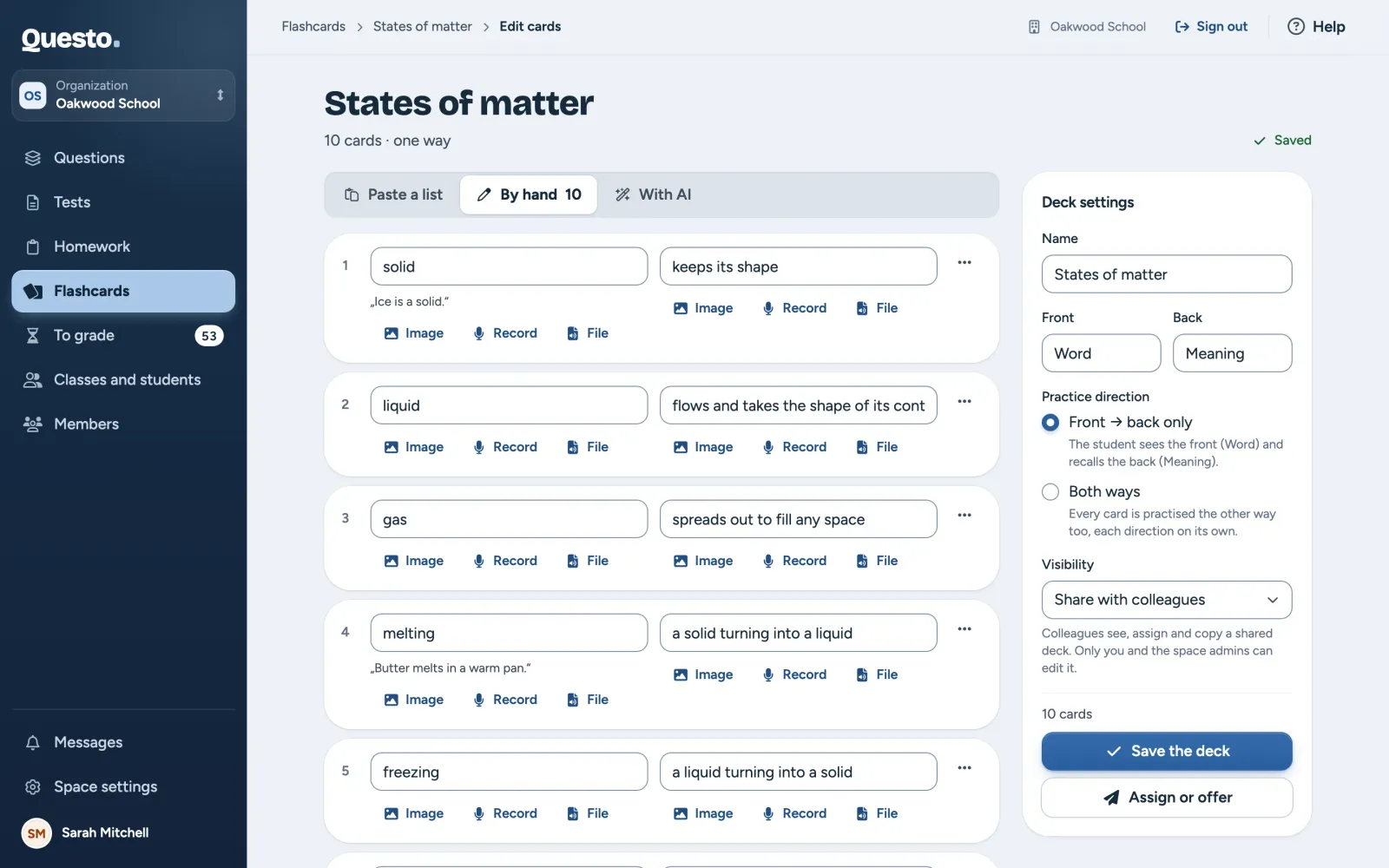
On the By hand tab, every card is one row with two sides.
- Click Add a card and write the front and the back.
- Each side can get an Image, a recording with Record (it records with the microphone in the browser; end it with Stop), or an audio file with File. A side may have only an image or only a recording, without text.
- Enter in the back adds another card, Tab goes to the other side, and Alt with the up or down arrow moves the card.
- Finally, click Save the deck.
The three-dots button of a card offers Move up, Move down, Swap sides and Delete the card.
Changes on the By hand tab do not save on their own. Until you click Save the deck, the top of the page says “Unsaved changes” and the browser asks before you close the page. When a card has only one side filled in, the deck is not saved until you fill in the other side or delete the card.
With AI
Creating with AI is on paid plans. On the Free plan the tab shows what AI does and the way to the plans. Pasting a list and writing by hand work without limits.
- Open the With AI tab.
- Under “Create from”, choose “A topic” or “A pasted text”.
- For a topic, write the “Topic” (the more precise, the better the cards), choose the “Level” (A1 to C2, or no level), the “Number of cards” (up to 50 at a time) and the kind in “Card”: “Word → translation”, “Term → definition” or “Question → answer”. For a text, paste it into “Text” and AI prepares the cards from it.
- Click Create cards.
- Go through the cards in “To check”. You can edit any of them, or untick it. Cards already in the deck are unticked in advance and marked “Already in the deck”.
- Click Save 20 cards (with the number of chosen cards).
The chosen cards are added and the deck is saved at once; unticked cards are not saved. Create again lets AI try once more, Back to the request takes you back to the topic. AI writes each side in the language its name in the deck settings gives (for example “English” and “Spanish”), so fill in the side names first. The tab also shows how much of the month’s AI allowance is used.
AI can make mistakes. Always check the cards before saving.
Deck settings
- Students see the deck’s “Name” in their Flashcards.
- “Front” and “Back” name the sides of the cards; students see them while practising.
- “Practice direction”: “Front → back only” (the student sees the front and recalls the back), or “Both ways” (every card is practised the other way too, each direction on its own).
- “Visibility” in an organization: “Only you and the space admins” or “Share with colleagues”. A deck that is not shared is seen only by you, the owner and the admins. Colleagues see, assign and copy a shared deck. Only you, the owner and the admins can edit it. In a personal space only you see the deck.
Saving and giving it to students
At the bottom of the settings panel is the number of cards (and how many have a recording or an image) and two buttons:
- Save the deck saves the changes. A new deck is saved for the first time and the editor stays open.
- Assign or offer saves the deck, opens its page and there the window for choosing classes and students. What comes next is in Flashcards.
A deck holds at most 500 cards. Before saving, wait until the images and recordings are uploaded.
Editing a deck students have
You can edit a deck while students practise it. On the deck’s page, click Edit cards.
- A changed card keeps the students’ progress.
- A new card shows up for students the next time they practise.
- A deleted card drops out of the students’ practice, together with their progress on it.
The author of a deck can edit it; in an organization, so can the owner and the admins. For others, the editor says they cannot edit the deck. They can still view, assign or offer it, or duplicate it and edit the copy.