Classes and students
The students of a space, classes and their detail, a student's detail, archiving and removing students.
On this page9
Students belong to the space, not to a particular teacher. You put them into classes so that you can send them tests in one pick, a whole “7A”, say. It all lives under Classes and students in the navigation on the left. How to get students into the space is in Adding students.
Classes and students at a glance
The Classes and students page has two parts:
- “Classes” as tiles with their number of students. In an organization a tile also shows whether the class is “Shared” or “Private” and who created it. A tile opens the class. If you have archived classes, open them with the Archived classes link on the right above the tiles.
- “All students” of the space. Each row shows how the student signs in (with a username and no e-mail, with e-mail, or still waiting to accept an invitation) and which classes they are in.
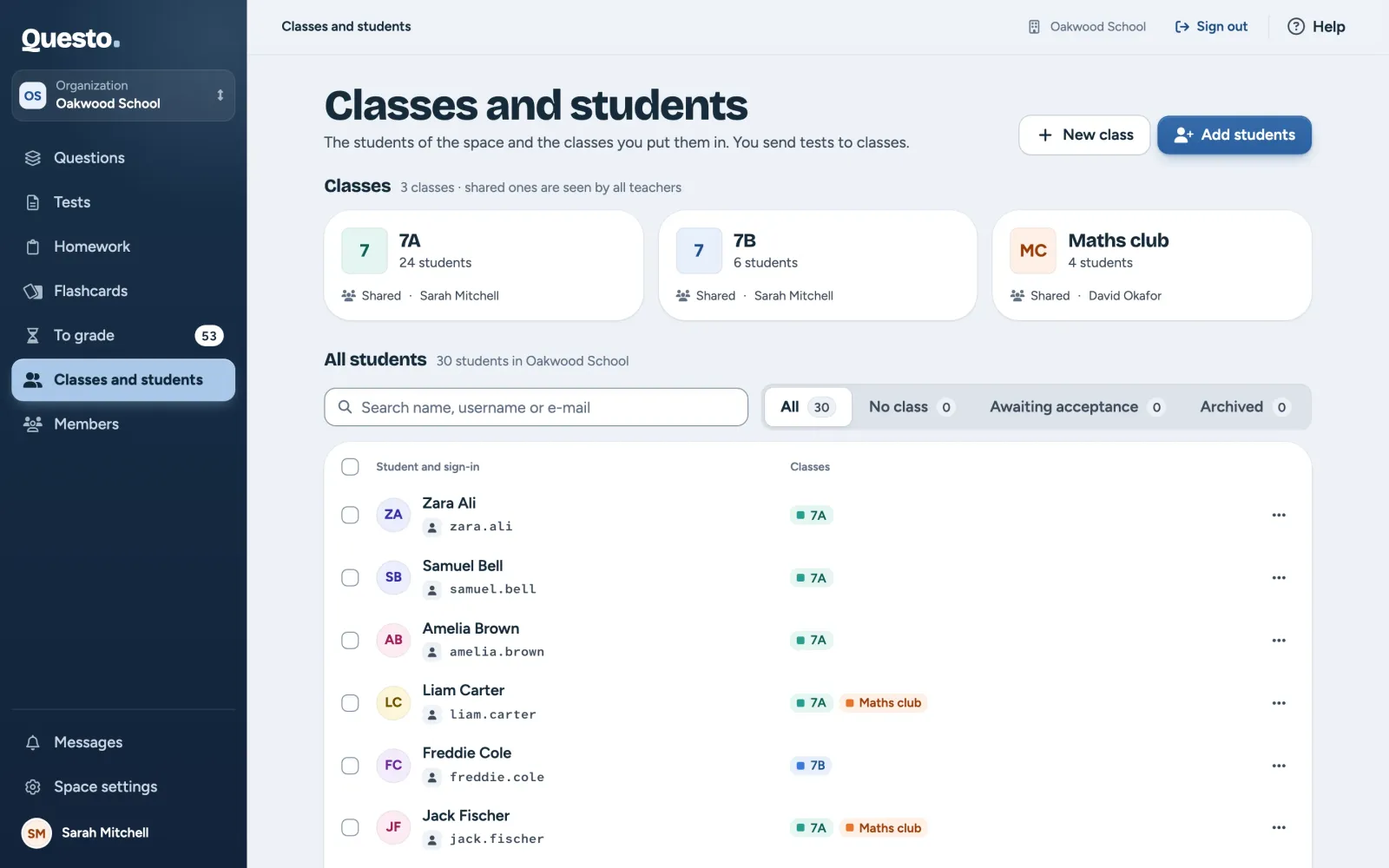
Above the student list is the search. It searches names, usernames and e-mails, and diacritics are optional. Next to it is the filter:
- All: every active student of the space,
- No class: students who are not in any class,
- Awaiting acceptance: e-mail invitations nobody has accepted yet,
- Archived: students who cannot sign in (see Archive or remove).
On a phone there is no filter; the list always shows every student.
A new class
- On Classes and students, click New class.
- Fill in the “Class name”, like 7A or Advanced English. Teachers see it when sending a test.
- Pick a “Colour”. It only tells classes apart; it means nothing.
- In an organization, choose “Who sees the class”: “Private” (only you and the space admins) or “Shared” (every teacher of the space, who can then send it tests).
- Click Create class. The new class opens, ready for students.
You can also create a class while adding students, with “Create a new class…”.
A personal space has no “Who sees the class” choice. Only you see its classes.
A class’s detail
The detail shows the students of the class and, on the right, “Tests of the class”: the tests the class got, with their status, the number handed in or the average. A test’s name opens its detail.
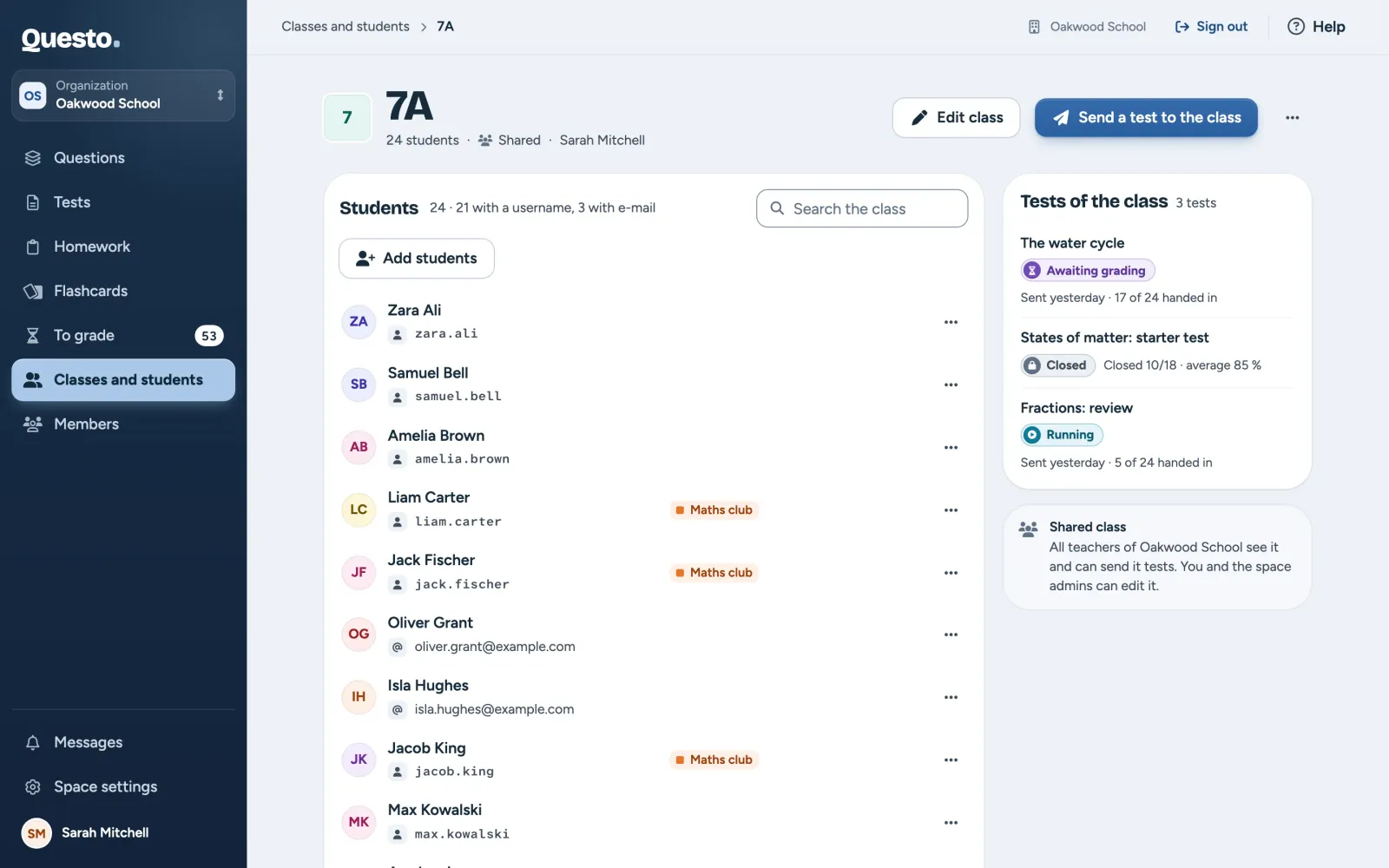
At the top are the class’s actions:
- Edit class changes the name, the colour and, in an organization, who sees the class.
- Send a test to the class (only when the class has students) lists the tests you may send: your own, and every test if you are an owner or admin. Pick one; in the next step the class is already among the recipients. Create a new test starts a new one.
- More class options (three dots): Print cards for students with a username (see Sign-in cards), Archive class and Delete class.
In another teacher’s shared class you only see Send a test to the class and printing cards. You cannot change the class or its students.
Students in the class
- Add students (in an empty class Add students to the class) opens a picker: tick students you already have in the space, or type a new student’s e-mail and confirm it with Enter. Whoever has a Questo account joins at once; the others get an invitation.
- To take a student out of the class, use Remove from class with its name in the menu of their row. They stay in the space with their results, and the notice that follows lets you take it back with Undo.
- “Search the class” finds a student by name, username or e-mail. A student’s other classes show next to their name.
Who sees and edits a class
- A “Shared” class is seen by every teacher of the space, and they can send it tests.
- A “Private” class is seen only by whoever created it and by the space’s owner and admins.
- A class can be edited, archived and deleted, and its students changed, by whoever created it and by the space’s owner and admins. A shared class offers other teachers none of these actions.
Students themselves belong to the whole space: every teacher of the space sees them in “All students”.
End of the school year: archiving and deleting a class
Archive class suits the end of a school year. The class disappears from the overview and from the recipients when sending a test; the tests it got and the students’ results stay. The dialog asks what to archive:
- “The class and all … students”: the students left the school. They cannot sign in and leave every class.
- “The class only”: the students go on, in a new class perhaps.
Bring an archived class back from “Archived classes” with Restore class. Its archived students stay archived; restore them separately in the Archived filter.
Delete class removes the class for good. The students stay in the space with their results, and the tests the class got do not change; they just show the individual students instead of the class’s name.
Deleting a class cannot be undone. If you are not sure, archive the class instead.
A student’s detail
A student’s row opens their detail: how they sign in, which classes they are in and how their tests went. A test’s row opens their answers in that test.
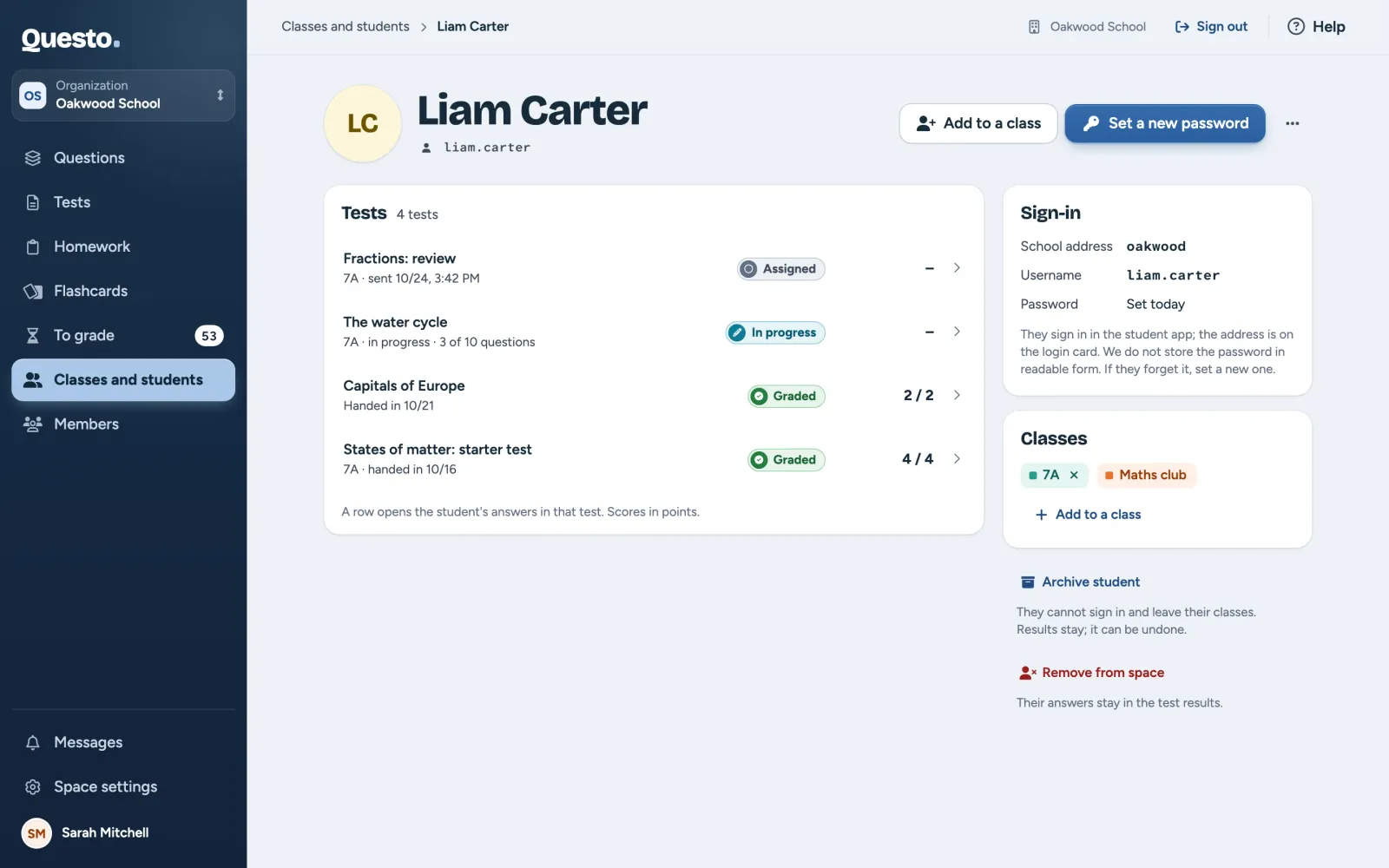
The main button depends on the account:
- a student with a username: Set a new password (we do not store passwords in readable form, so a forgotten password is replaced with a new one),
- a student with e-mail: Add to a class (they change their password themselves with “Forgot password”; you cannot set it),
- a pending invitation: Send the invitation again,
- an archived student: Restore student.
The More student options menu holds Edit name (only for students with a username; the username stays the same), Archive student and Remove from space. For a pending invitation it holds Copy invitation link and Cancel invitation.
Under “Classes”, the cross on a class removes the student from it, and Add to a class puts them in another. Both work only for classes you may change (see Who sees and edits a class).
Bulk actions
In “All students”, tick students (or every student shown with the checkbox in the header). A bar with actions appears at the bottom:
- Add to class,
- Print cards (when someone among them has a username),
- Archive,
- in the Archived filter, Restore instead.
Clear selection clears the ticks.
Archive or remove a student
- Archive suits a student who leaves but may come back. An archived student cannot sign in, leaves their classes and cannot be sent new tests. Their results stay. Once restored, they sign in as before; just put them in classes again. Their username stays reserved.
- Remove from space is for good. The student can no longer sign in to the space and leaves every class. Their answers stay in the test results, marked “removed student”.
Removing a student with a username deletes that account. Should they come back, you create a new one. If the student may come back, archive them instead.
Who may do what
Every teacher of the space works with students, not only the admins: they add students, create classes, set students’ passwords, print cards, archive and remove students. The only difference is with classes; see Who sees and edits a class. The roles of an organization are described in Members.