Flashcards
Flashcard decks for practising words and terms - the list and a deck's page, assigning with a goal or offering for self-study, what you see of the students' progress, and the plan limits.
On this page8
A flashcard has a front and a back: a word and its translation, a term and its meaning, a year and an event. You put cards into decks and give the decks to students. Students practise in their app a few minutes a day; after flipping a card they rate how it went, and Questo keeps track of when to repeat each card. How to create a deck and add cards is in Editing a deck.
The list of decks
Open Flashcards in the navigation on the left.
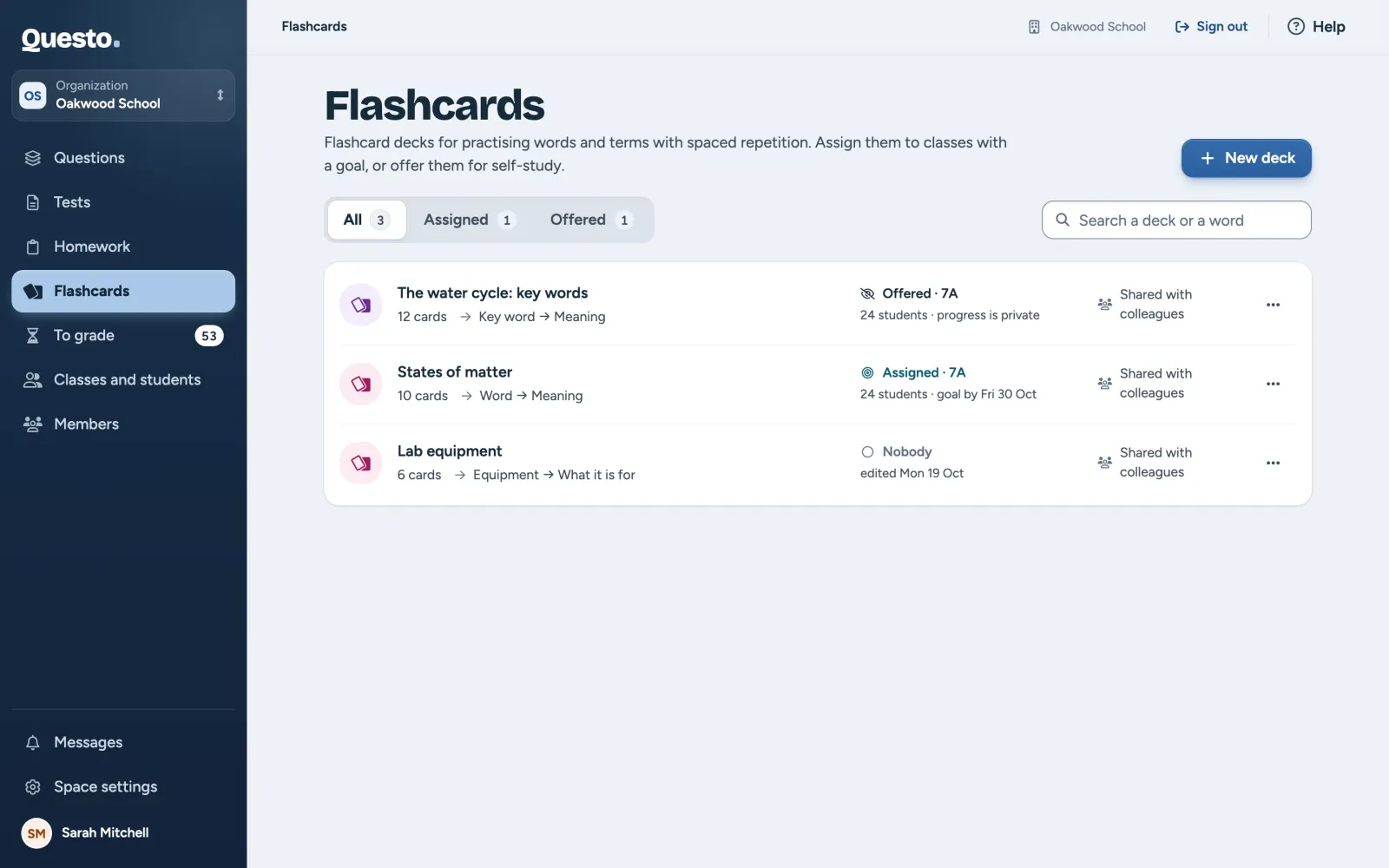
- New deck at the top right opens the editor.
- The tabs All, Assigned and Offered filter decks by how they are given to students.
- Search finds a deck by its name and by the text on its cards.
- Each row shows the number of cards, the practice direction (for example “Word → Translation”, or both ways), who the deck is assigned or offered to and how many students. An assigned deck also shows its goal and date, an offered one “progress is private”. In an organization you see whether the deck is shared with colleagues and, for someone else’s deck, its author.
Click a deck to open it. The three dots hold Assign or offer, Who has the deck, Edit cards, Duplicate and Delete.
While the space has no deck yet, the page offers three ways to start: Paste a list, Write by hand and Create with AI.
Plan limits
On the Free plan, Plan limits above the list show how many of the allowed decks the space has and how many sends are used this month.
- Decks count as a total, not per month. Once the limit is used up, you cannot create a new deck or a copy. Every existing deck keeps working, though: students practise it and you can edit, assign and offer it. Deleting a deck frees its place.
- Assigning a deck takes one send per student, like a test or homework. Offering it for self-study counts nothing.
- Creating with AI is on paid plans.
When the space is read-only (its plan or trial has ended), new decks, assigning and offering are not possible. Students keep practising every deck they have, and their progress is saved.
A deck’s page
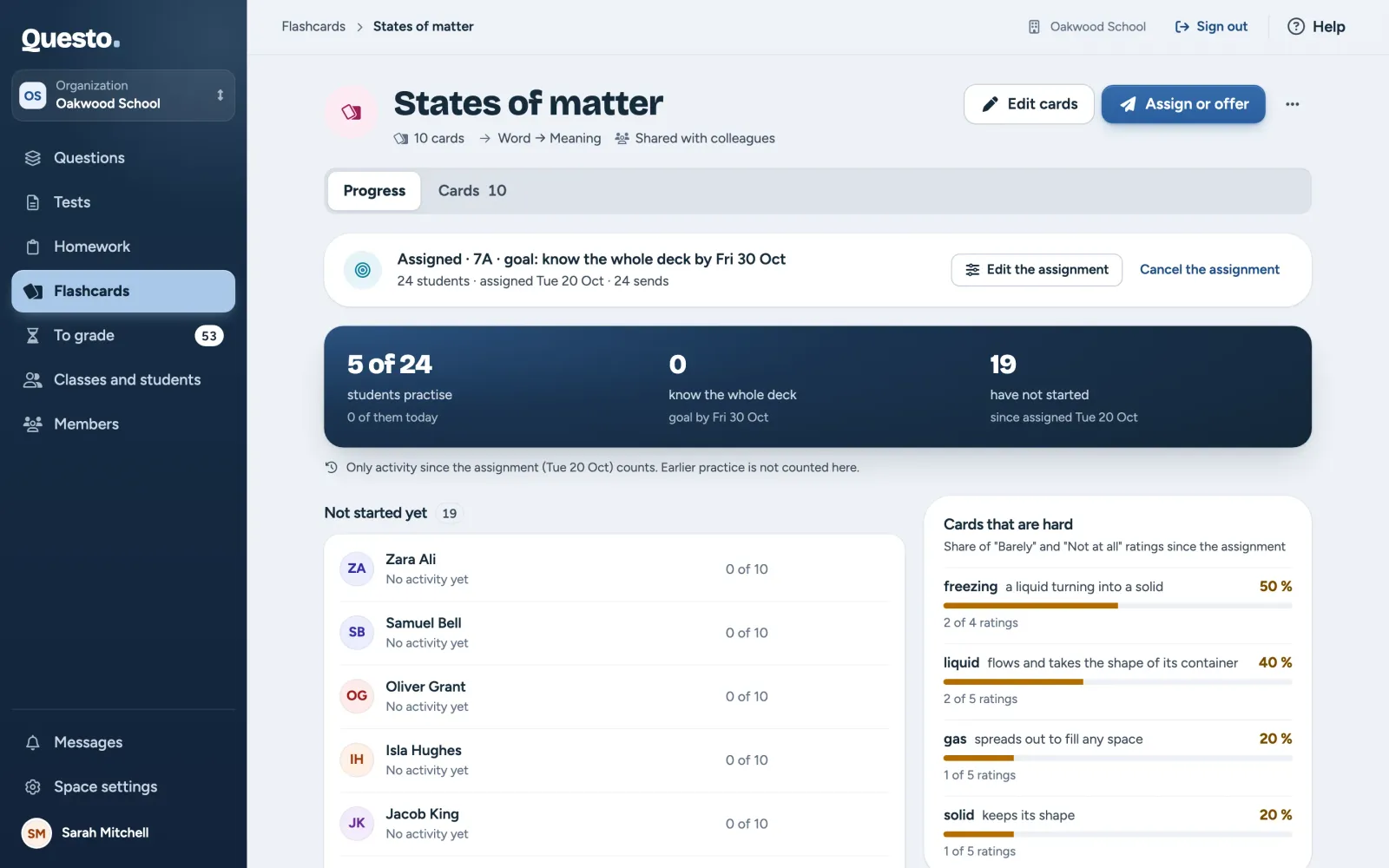
The header shows the number of cards, the practice direction and, in an organization, the visibility and the author. On the right are Edit cards (for the author, the owner and the admins only), Assign or offer and the three dots with more actions.
The page has two tabs:
- Progress shows who has the deck and how the students are doing (see below). While nobody has the deck, it has an Assign or offer button.
- Cards lists the whole deck in order. Click a card to open it as the student sees it. Click it or press Space to flip it; Previous and Next browse the cards.

Assign or offer
There are two ways to give a deck to students:
- Assign: optionally with the goal “know the whole deck by a date”. You see who practises, how close they are to the goal and which cards are hard. Takes 1 send per student. Students get a message in the app and an e-mail.
- Offer for self-study: the deck just appears in the students’ Flashcards, without a goal. They get no message or e-mail about it. It counts nothing. The students’ progress stays private; you do not see it, not even later.
- On the deck’s page, click Assign or offer. The deck needs at least one card.
- In “Who gets the deck”, type a class, a student’s name or an e-mail address and pick it from the list, as for tests. Whoever has the deck already does not get it again.
- Under “How to give the deck”, choose “Assign” or “Offer for self-study”.
- For an assignment, choose the “Goal”: know the whole deck by a date (set in “Date”), or no goal, just practise.
- Check in the Summary who gets the deck and click the button with the count, for example Assign to 24 students.
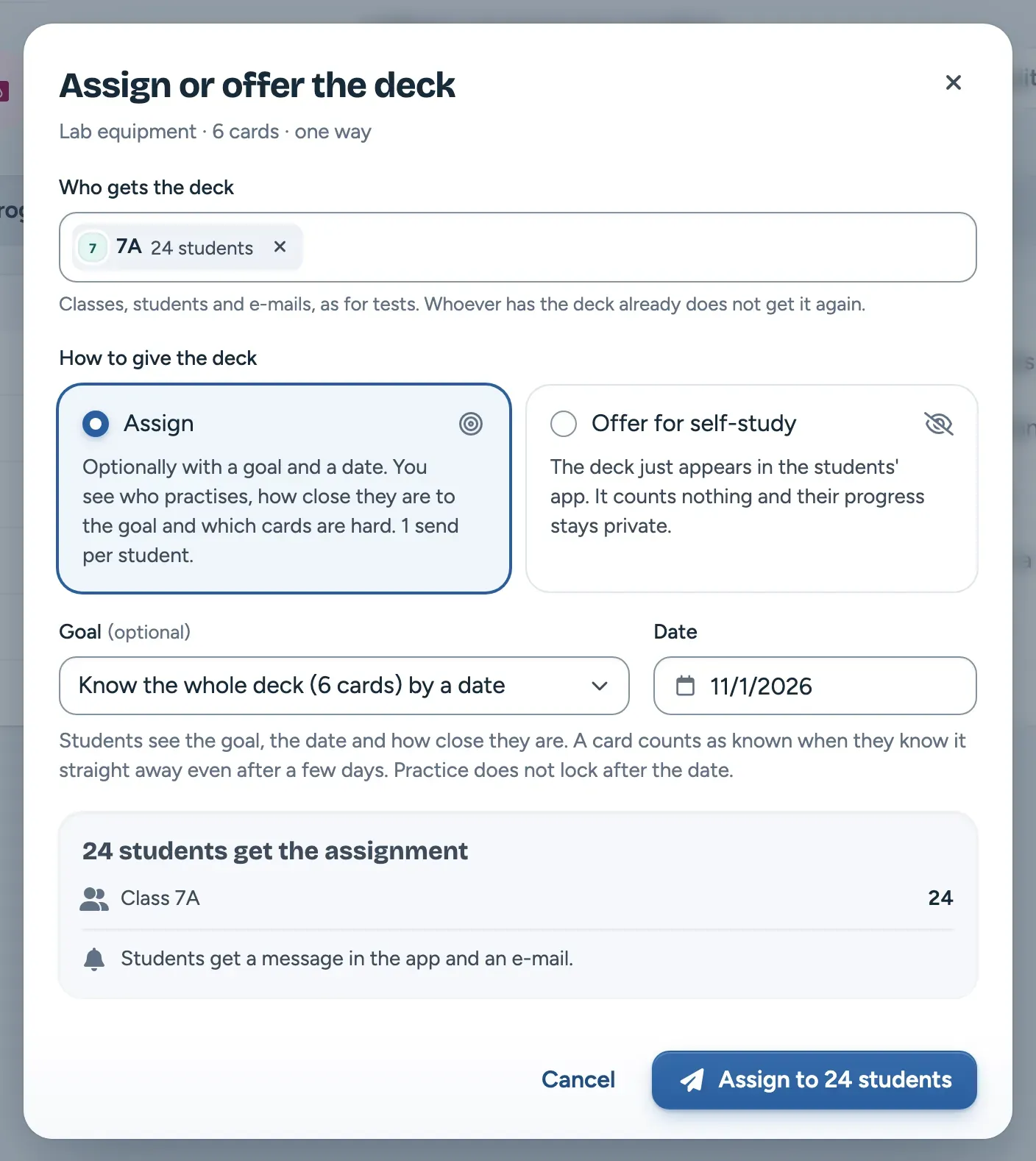
The goal is to know the whole deck by the end of the chosen day. A card counts as known when the student knows it straight away even after a few days. Practice does not lock after the date.
Not enough sends left to assign? The window says so and offers Offer instead. Students can practise right away; you just do not see their progress.
Students’ progress on an assigned deck
The Progress tab of an assigned deck shows:
- how many students practise and how many of them today, how many know the whole deck and how many have not started,
- the students split into “Not started yet” and “Practising”, each with how many cards they know and how many practice rounds they have done,
- “Cards that are hard”: the share of “Barely” and “Not at all” ratings for each card. For a deck practised both ways, it shows when mostly the reverse direction is hard.
Click a student to open their progress: how much of the deck they know, their activity by day and the cards they find hardest.
Only activity since the assignment counts. Earlier practice, for example of an offered deck, is not counted here. When the deck is assigned more than once (say, to two classes separately), choose whose progress to see in “Show progress for”.
Offered decks and privacy
For an offered deck you do not see who practises or how it goes, not even later. Students know this: in their Flashcards the deck carries a line saying that you do not see their progress. The offer window shows you that line beforehand.
Want to follow progress? On the Progress tab, click Assign instead. Assigning takes sends (1 per student) and students see the deck is assigned. Only practice from the assignment on counts.
Changing or cancelling an assignment
The summary at the top of the Progress tab shows who has the deck and since when. It has two buttons:
- Edit the assignment (or Edit the offer): change the goal and the date, add or remove students, and turn an assignment into an offer or back. Changing the goal or the date counts nothing; new students in an assignment do. Removed students lose the deck; their progress stays saved.
- Cancel the assignment (or Cancel the offer): the deck disappears from the students’ Flashcards. Their progress stays saved, and if they get the deck again, they carry on. Instead of cancelling, you can tick that the deck stays offered to the students for self-study.
All assignments and offers of a deck are under the three dots in Who has the deck. Give to more there gives the deck to more students.
Sends already used are not returned when you cancel an assignment or turn it into an offer.
Sharing and deleting
In an organization a deck can be shared with colleagues. Colleagues see a shared deck, can assign and offer it to their students, and copy it with Duplicate. Only its author, the owner and the admins can edit it. A copy is a new deck that nobody has yet, and on the Free plan it counts against the deck limit.
Delete deletes the deck with all its cards. Students who have it lose it, with their progress. When the deck is given to someone, confirm by typing its name.
How to add cards and set up a deck is in Editing a deck.