Getting started
How to create an account, what a personal space and an organization are, and how to switch between spaces.
On this page5
Questo is an app for teachers and tutors. Your questions live in a bank; you build tests and homework from them and send them to your students. This guide covers the first steps: signing up, spaces and switching between them.
Signing up
- On the website, click Start for free, or Sign up on the app’s sign-in page.
- Enter your e-mail and click Send link. We send you a link to finish signing up.
- The link opens “Finish signing up”. Fill in your first name, last name and a password and click Create account.
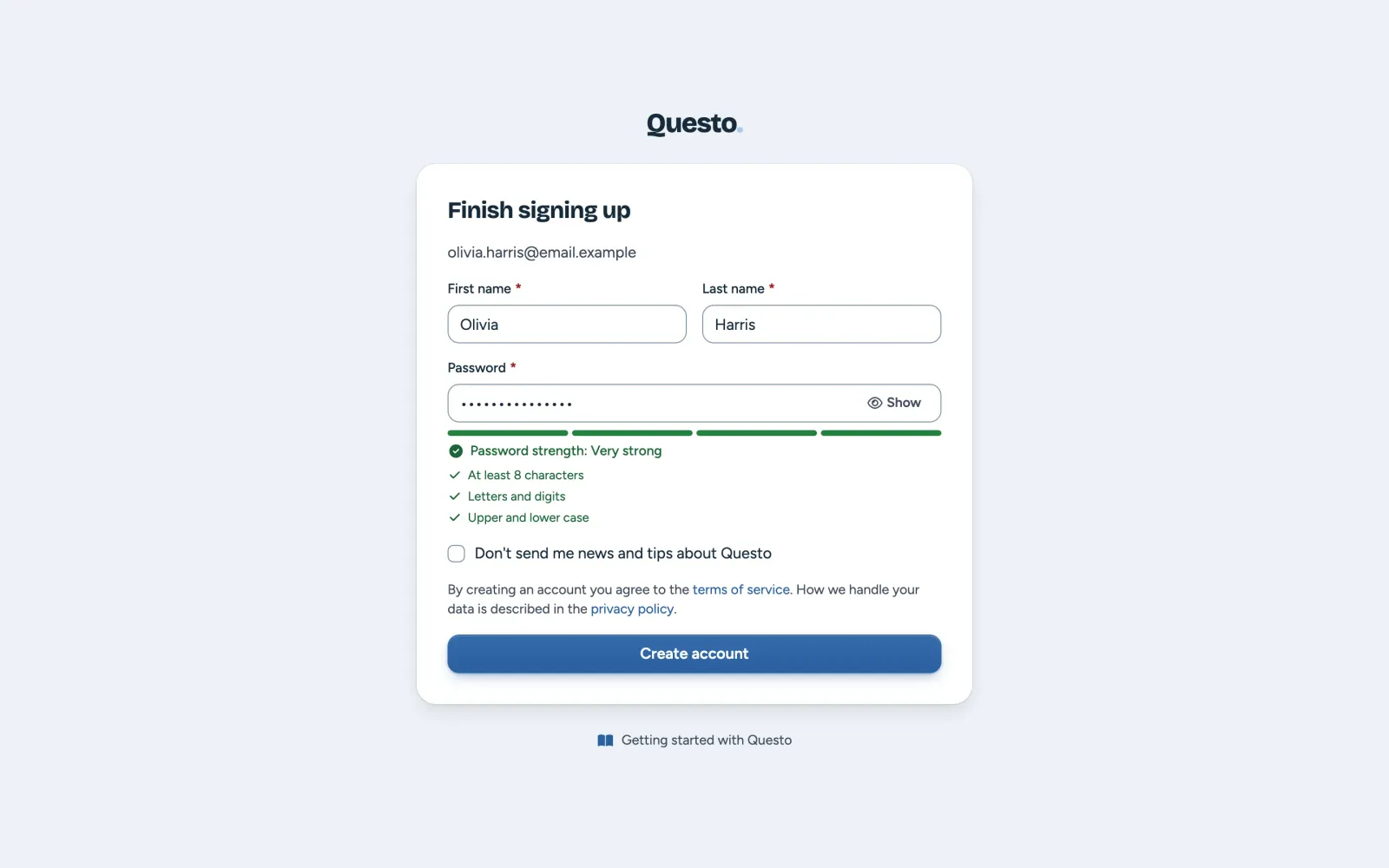
By creating an account you agree to the terms of service. If you do not want news and tips about Questo, tick that in the same form.
Once the account is created you are signed in. Questo prepares your personal space and opens its Questions page.
Invited to Questo by your school? Sign up through the link in the invitation, or at least with the e-mail address the invitation was sent to. You then find the school’s space in the space switcher (see below).
What a space is
Everything you create in Questo (questions, tests, homework, flashcards, classes and students) always belongs to a space, not to you personally. There are two kinds:
- Personal space: every account has one. It is yours alone; other teachers cannot be invited to it. It suits private tutoring and your own preparation. Students sign in to it with their e-mail, or fill in a test through a public link.
- Organization: the space of a school or a language school. Several teachers work in it and share the question bank and the classes. Every member has a role: “Owner”, “Admin” or “Teacher”. Owners and admins invite the teachers.
What you create in an organization stays with the organization, even if you leave it later. Your personal space does not change.
Switching between spaces
The switcher at the top of the navigation on the left shows which space you are in. On a phone, open the navigation with the Menu button at the top left.
- Click the switcher with the space’s name.
- In the menu, pick your personal space or one of your organizations. Each organization shows your role in it.
- Questo opens the Questions page of that space.
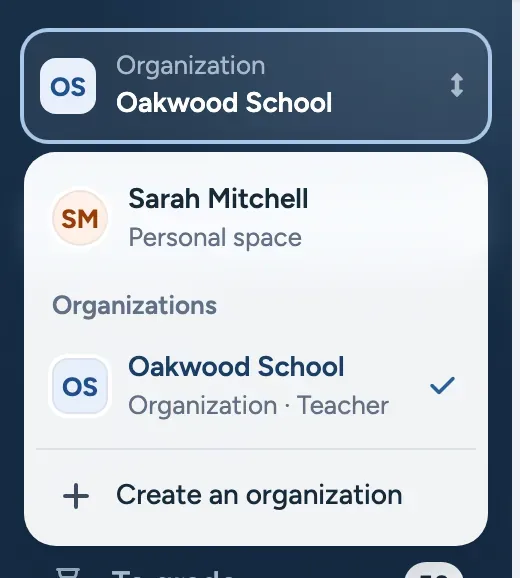
The next time you sign in, Questo takes you back to the space you worked in last. This applies to the browser you sign in with.
An invitation to an organization
When an owner or admin of an organization invites you, you get an invitation by e-mail:
- You already have a Questo account: you are a member at once. The organization shows up in the space switcher.
- You do not have an account yet: click Accept and create account in the e-mail and finish signing up. The invitation is valid for 14 days.
Your own organization
You can also create an organization yourself: click Create an organization in the space switcher. You fill in its name, the school address (students type it when they sign in with a login card) and a contact person. An organization starts with a free 30-day trial, and its settings open right after it is created.
An account gets the trial only once. We are happy to set up another organization for you; just write to us.