Questions
Where your questions live in Questo, how to organise them into sets and labels, and how to search them.
On this page6
The Questions page is your space’s question bank. Questions are kept in sets, for example by subject or topic, and labels help you find questions across sets. You then build tests and homework from the bank as often as you like: you prepare a question once and keep using it.
Sets, all questions and labels
Open the page with Questions in the navigation on the left. Below the title you see how many sets and questions the space has. The bank has three tabs:
- Question sets shows your sets as cards with their name, number of questions and when they last changed. Click a card to open the set.
- All questions searches the questions of every set at once.
- Labels is where you manage labels.
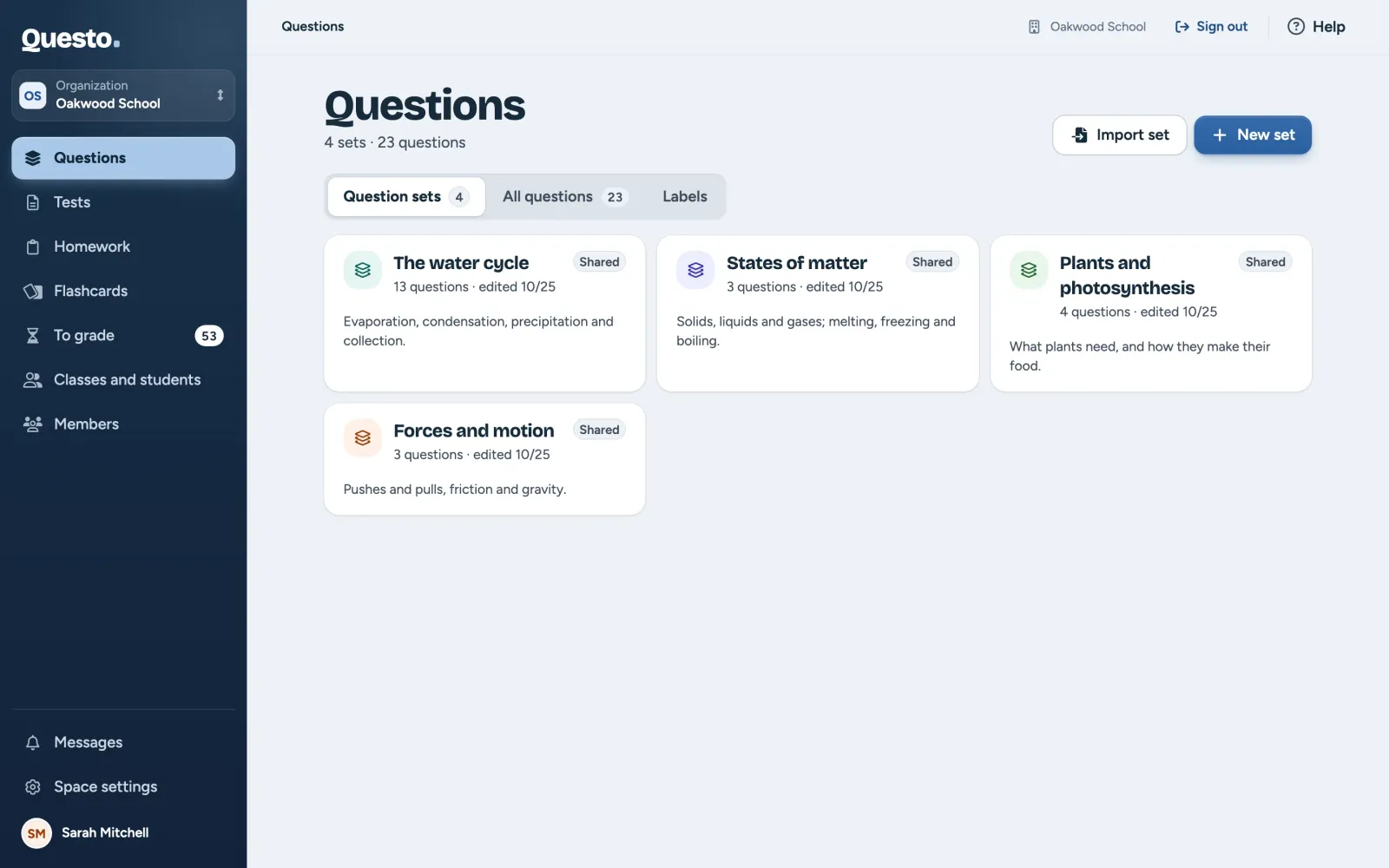
Working with the questions inside one set is described in Question sets.
A new set
- On the Questions page, click New set.
- Fill in the “Set name”, a description if you like, and pick a colour.
- In an organization, choose “Who sees the set”: “Private” (only you and the space’s admins see it) or “Shared” (every teacher in the space can use it).
- Click Create set. The new set opens right away, ready for questions.
Name your sets the way you think about the subject: by topic, year group or textbook chapter. Questions can be moved to another set at any time.
Searching for questions
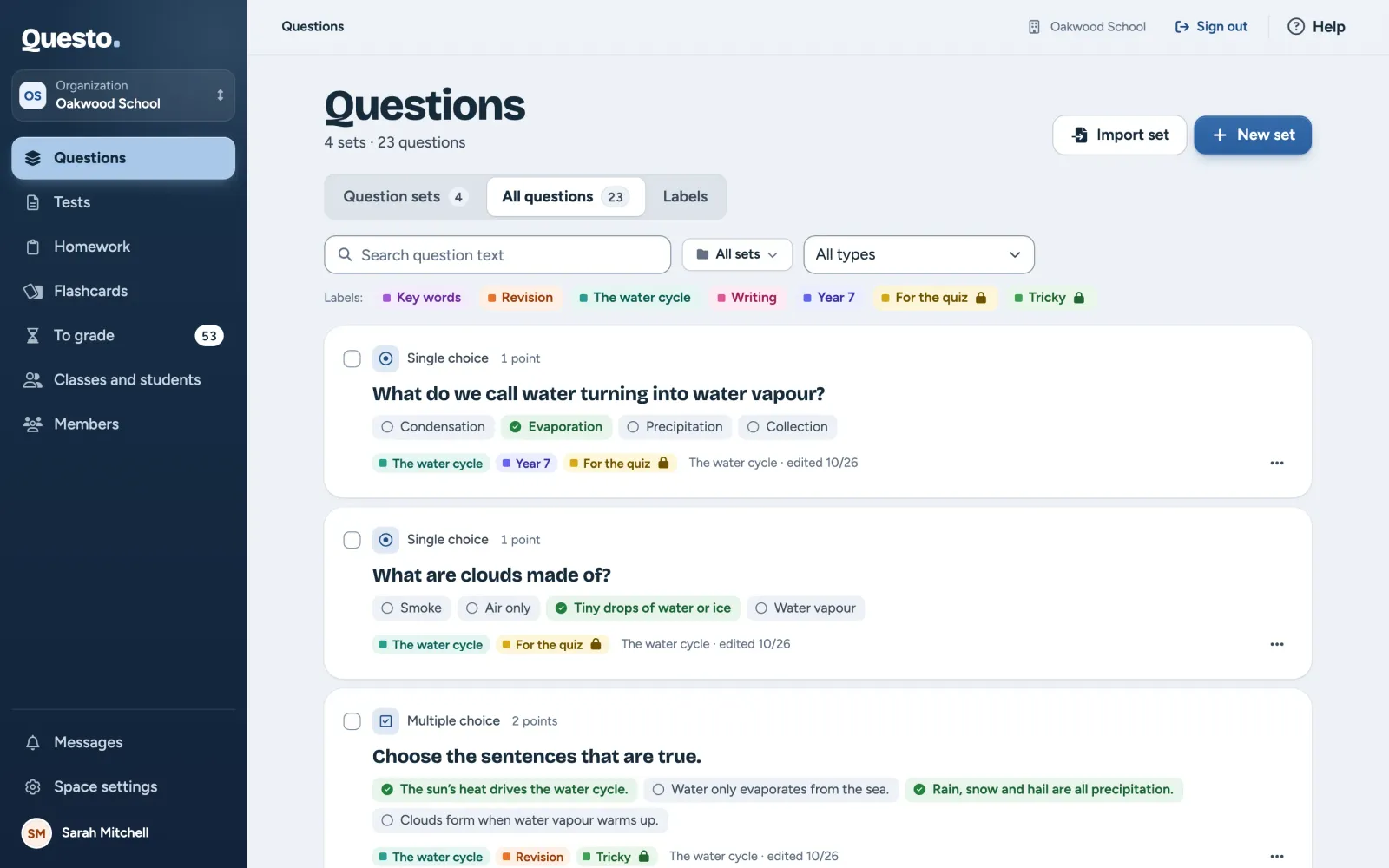
On the All questions tab you find a question even when you do not know which set it is in.
- Type a word of the question into “Search question text”.
- Pick a set if you like (the default is “All sets”). You can also find the set by searching for its name or its author; the sets you used last are at the top.
- Pick a question type if you like (the default is “All types”).
- Below the field, click one or more labels. Click a label again to take it out of the filter.
- Clear filters clears them all.
Each question shows the set it is in. Click a question to open it in its set. Its menu (three dots) also lets you Open set, Add to test or Move to a set.
Several questions at once
Tick the questions on their cards. A bar appears at the bottom with the number selected and these buttons:
- Add to test offers “To a new test” (button Create test) or “To a test in progress” (choose a draft and click Add to test).
- Move to a set moves the questions to another set you can edit. Find the target set by searching for its name; when none fits, type the name of a new one and choose “Create set “…””. The new private set is created when you confirm the move. The questions take the target set’s visibility. Tests you have already sent do not change.
- Clear selection clears the selection.
You can only move questions you can edit. Composing the test is described in Composing and sending a test.
Labels
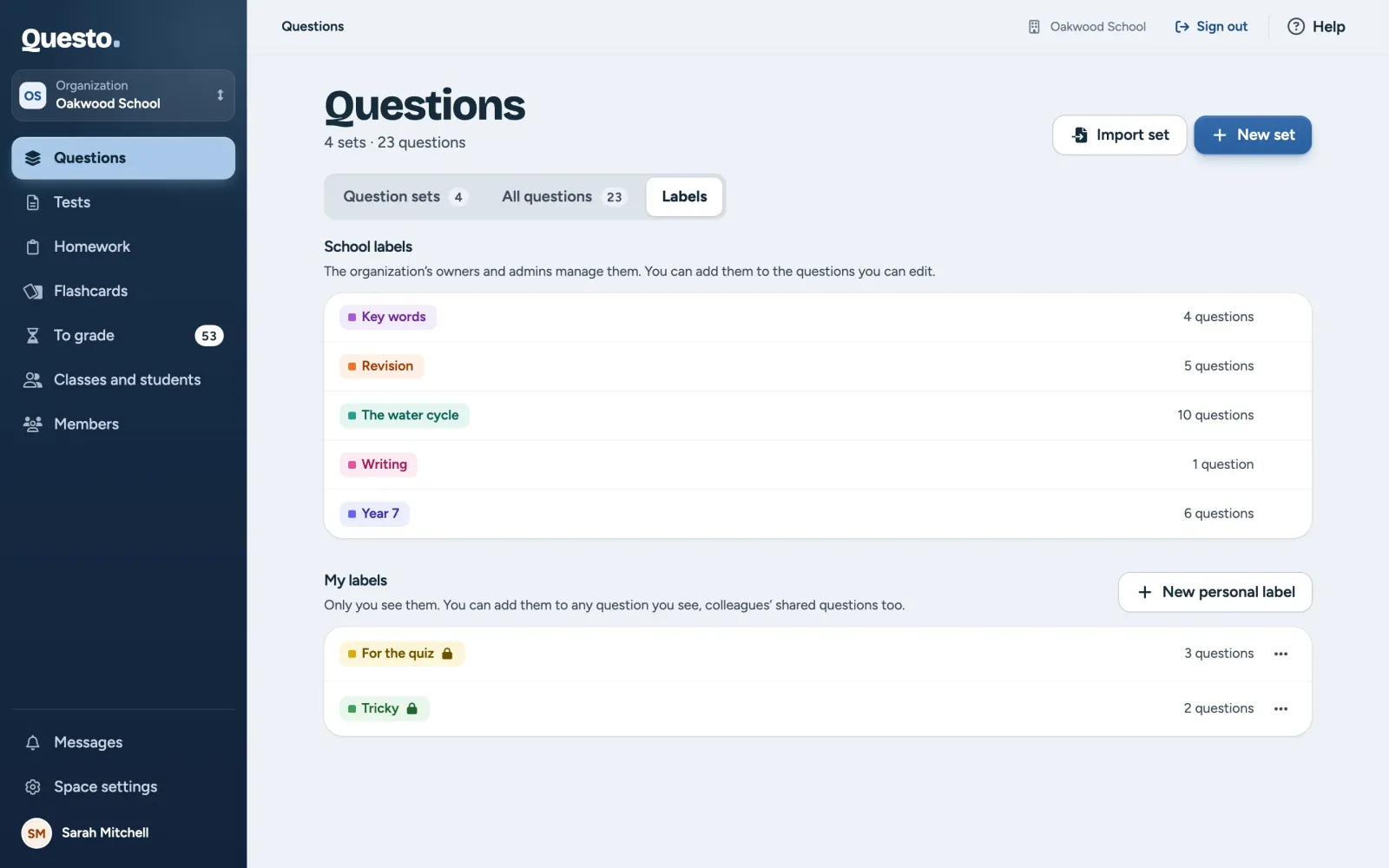
A label is a short tag, such as “revision” or “end of term”, that a question in any set can carry. You add labels to a question in its editor (see Editing a question) and manage them on the Labels tab.
- In a personal space there is one list of labels. Add one with New label.
- In an organization there are two lists. Every teacher of the organization sees the “School labels” and adds them to the questions they can edit; the organization’s owners and admins create and change them (New school label). Only you see “My labels”, and you can add them to any question you see, colleagues’ shared questions too (New personal label).
Each label shows how many questions carry it. Its menu offers Rename or recolour, Merge into another label (the questions get the chosen label and the old one is deleted) and Delete label. Deleting a label never deletes questions.
Import and sample questions
Importing a set from a file: In a set’s menu, Download as a file saves it as a .questo.json file. In another space you then upload it:
- On the Questions page, click Import set.
- Drag the file into the window or choose it from your computer. The file can be up to 10 MB.
- Click Import set. A new private set is created and opens.
If the file lacks the pictures of some questions, the window says so beforehand and you add them after the import.
Sample questions: In an empty personal space Questo offers ready-made sets to try once (Choose samples or Not now). Later, or in an empty organization, you find them under Try it with sample questions. Pick the subjects and Questo adds question sets, labels and a test ready to send. You find the samples under the Sample label and can change or delete them like any other questions.
Who sees and edits what
Questions belong to the space, not to you personally. In a personal space only you see everything. In an organization:
- A private set is seen by its author and by the organization’s owners and admins.
- A shared set is seen and used in tests by every teacher of the organization.
- Only the author and an owner or admin of the organization can edit or delete a set and its questions. Other teachers can view a question, add it to a test and attach their own labels.
Questions created in an organization stay with the organization, even if you leave it. You copy a set from your personal space to an organization with Copy to an organization (see Question sets); only sets of a personal space have this option.
When the space’s plan or trial ends, the bank stays visible, but no new sets or questions can be added for now.