Members and roles
Who teaches in an organization and in which role, how to invite teachers, change a role, hand over ownership, remove a member and leave the space.
On this page6
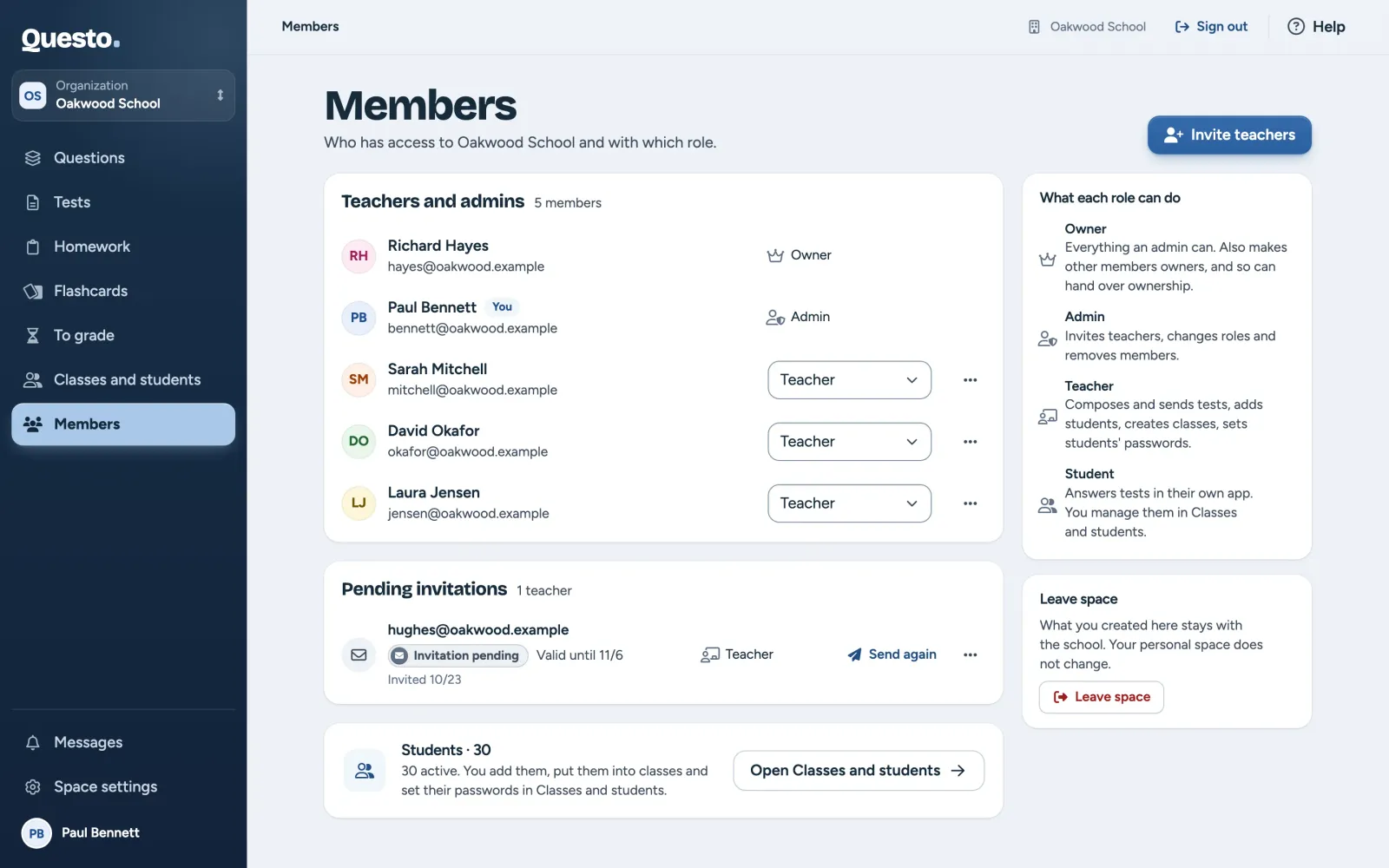
The Members page shows who teaches in the space and in which role. Every teacher of the space sees it, but only the owner and admins invite teachers, change roles and remove members. Students are not listed here; you manage them in Classes and students (see Classes and students).
Roles in an organization
- “Owner”: can do everything an admin can. Also makes other members owners, and so can hand over ownership. A space always has at least one owner.
- “Admin”: invites teachers, changes their roles and removes members. Changes the space settings, orders the plan, manages the school’s labels, and sees and edits every teacher’s content, private content included.
- “Teacher”: composes and sends tests and homework, grades them, adds students, creates classes and sets students’ passwords. Sees the space’s shared content and their own private content.
- “Student”: answers tests and homework in the student app.
A teacher who cannot invite colleagues sees a note on Members saying who invites teachers and changes roles in the space. Write to them when you need a colleague added.
A personal space belongs only to you. Other teachers cannot be invited to it, and its roles do not change. You work with a school in its own space; switch to it in the navigation at the top left (see Getting started).
Invite teachers
Only the owner and admins of an organization.
- On Members, click Invite teachers.
- Fill in the “Teacher’s e-mail”. Separate more addresses with commas.
- Under “Role”, choose “Teacher” or “Admin”.
- Click Send invitation.
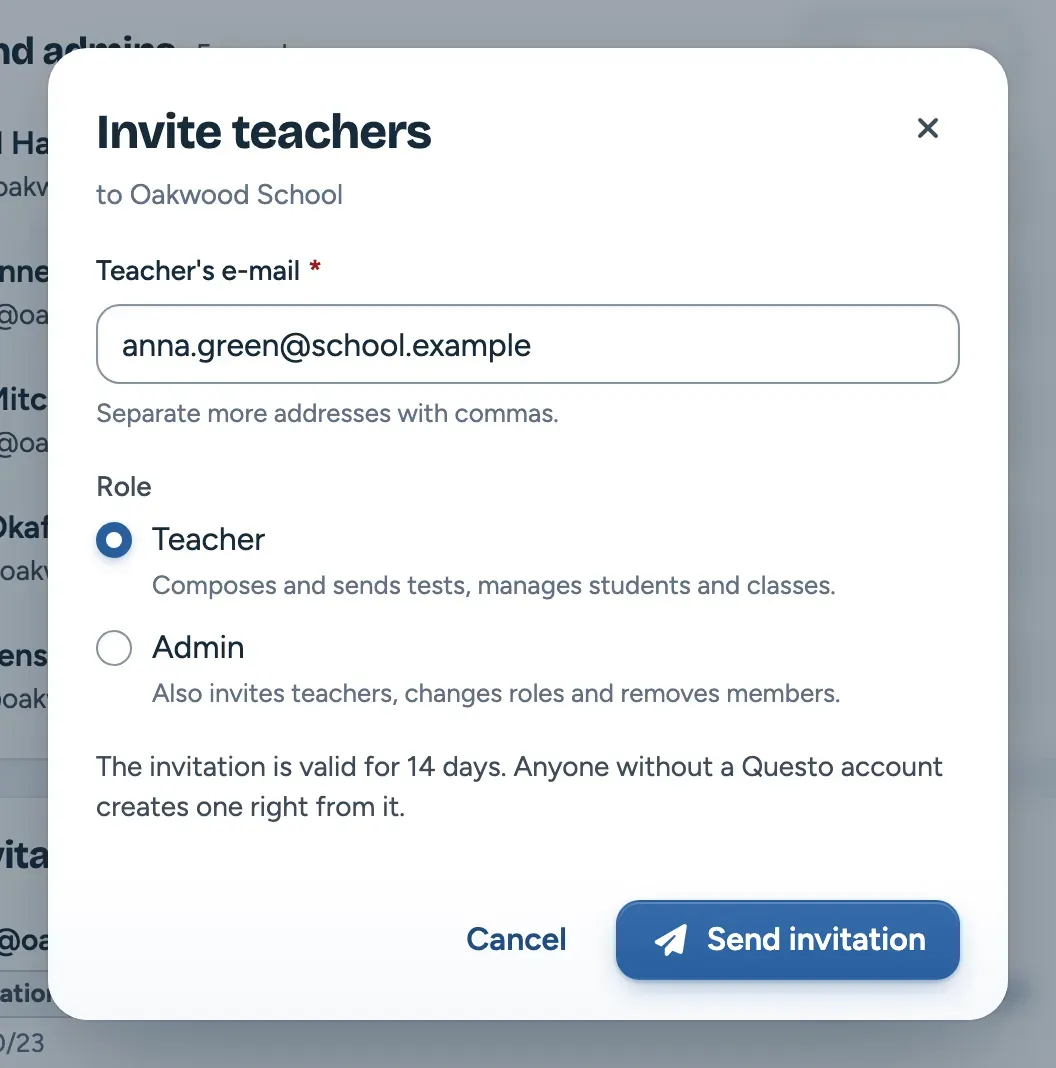
Whoever already has a Questo account is a member at once, and the organization shows up in their space switcher. Everyone else gets an invitation by e-mail and creates an account from it. The invitation is valid for 14 days. What the invited person sees is in Getting started.
Pending invitations
Invitations nobody has accepted yet are under “Pending invitations”, with the date sent and the date they are valid until. The owner and admins have:
- Send again: sends the invitation again, valid for another 14 days (an expired one too),
- Copy invitation link in the menu: whoever opens the link confirms the e-mail once more, so sending the invitation again is usually quicker,
- Cancel invitation in the menu: the invitation link stops working.
Change a role
The owner and admins switch a role between “Teacher” and “Admin”. An owner can also make a member an owner and changes other owners’ roles too.
- In “Teachers and admins”, change the member’s role in the drop-down.
- Confirm with Change role to admin, Change role to teacher or Make an owner.
Tests, classes and questions stay as they are. The only one who changes their own role here is an owner giving up ownership (see below). Admins cannot change an owner’s role.
Hand over ownership
Only an owner.
- For the member who takes over the space, choose “Owner” in the drop-down and confirm with Make an owner. They get the same rights as you, including making and removing owners. You stay an owner.
- Then choose “Admin” or “Teacher” next to your own name and confirm. You can change your own role only while the space has another owner. After that, only another owner can make you an owner again.
Instead of the second step, you can also leave the space in Space settings.
Remove a member
Only the owner and admins. Admins remove teachers and admins; an owner can also remove another owner. You cannot remove yourself here.
- Open the member’s menu (three dots) and choose Remove from space.
- Confirm with Remove from space.
The removed member loses access to the space. Their tests, classes and questions stay in the space with the students’ results. You can invite them back any time with a new invitation.
Leave the space
A teacher or admin who no longer wants to teach in the organization clicks Leave space on Members and confirms. The same is possible in Space settings.
After leaving, you lose access to the school’s tests, classes and question bank. What you created there stays with the school. You can only come back with a new invitation. Your personal space does not change.
An owner leaves the space in Space settings, and only when the space has another owner (see Hand over ownership). A personal space cannot be left.