Space settings
The space's name and the school address, addressing students, the plan and its limits, ordering a plan and leaving the space.
On this page6
Space settings is at the bottom of the navigation on the left. The settings apply to the whole space, to all its teachers and students. Your own name, photo and password are elsewhere, in My profile.
Who changes the settings
- In an organization, the owner and admins change the settings. A teacher sees them for information only: a note at the top says whom to write to when something needs changing, and the sections say “Changed by the owner and admins”. The only thing a teacher can do here is leave the space.
- In your personal space you are the owner, so you change the settings yourself.
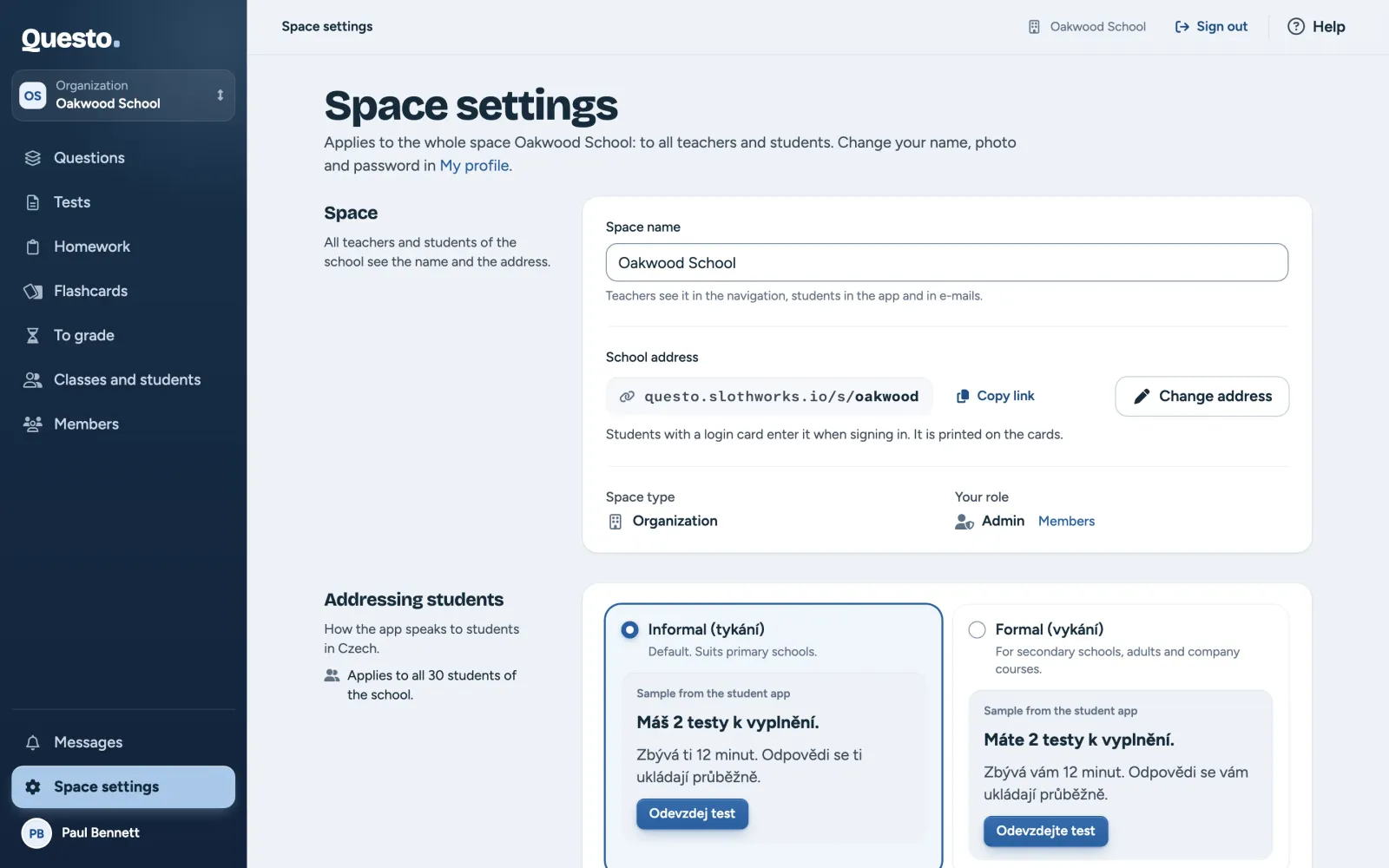
The space and its name
- In the “Space” section, change the “Space name”.
- Click Save name (or press Enter).
Teachers see the name in the navigation, students in the app and in e-mails. Below it are the space type (organization or personal space) and your role. In an organization, a link leads from here to Members.
School address
An organization has a school address, like questo.slothworks.io/s/oakwood. Students with a login card type its last part (oakwood) when signing in, and it is printed on the cards (see Sign-in cards).
- Copy link copies the school’s sign-in link. Whoever opens it has the school address filled in already. Teachers see this button too.
- Change address (owner and admins) opens a dialog. Type the new address in lowercase letters without accents, with digits and hyphens, 3 to 40 characters. Questo checks at once whether it is free. Confirm with Change school address.
You can change the address yourselves only once. Questo support makes any further change; write to questo@slothworks.io. The old address keeps leading to your school, so printed cards keep working.
A personal space has no school address and no login cards. Its students sign in with their e-mail, or fill in a test through a public link.
Addressing students
Czech has an informal and a formal “you”, and this setting decides which one the app uses with students:
- “Informal (tykání)”: the default, suits primary schools,
- “Formal (vykání)”: for secondary schools, adults and company courses.
The choice is saved as soon as you click it, and the notice that follows lets you take it back with Undo. It applies to the student app, e-mails and invitations, login cards and messages. Texts you write yourself (question prompts, test instructions, comments on answers) do not change: students see them exactly as you write them.
Plan and usage
The plan and its limits count for the whole space; in an organization, for all teachers together. Usage in a school does not count towards your personal space.
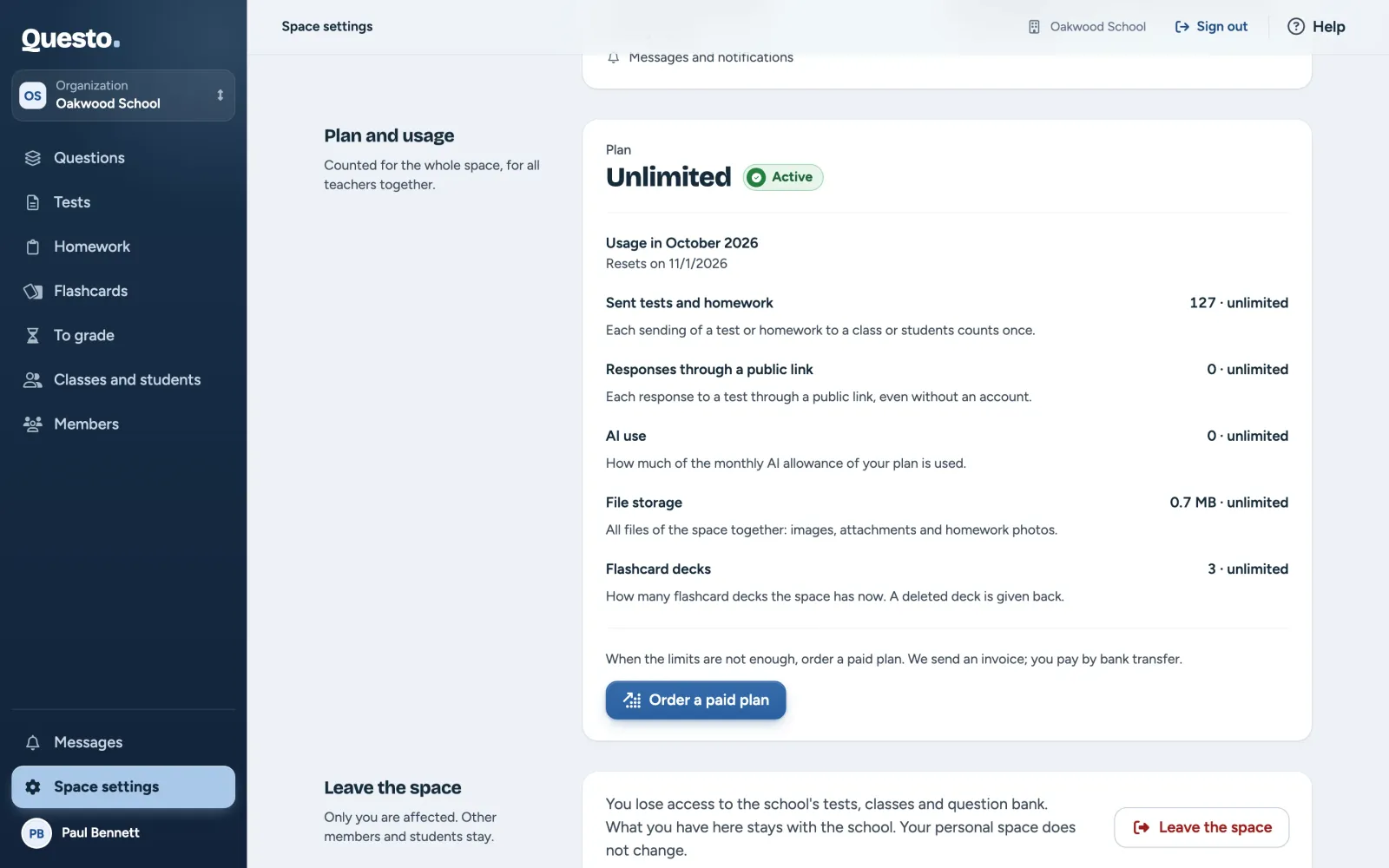
Under “Plan and usage” you see:
- the “Plan” and its status. A new organization starts with a free 30-day trial, a personal space with the free plan. A trial shows when it ends, a paid plan until when it is valid and how it is billed.
- usage in the current month with the date the limits reset (during a trial, “Usage over the whole trial”): “Sent tests and homework” (each sending to a class or to students counts once), “Responses through a public link”, “AI use”, “File storage” and “Flashcard decks”.
- “Packages bought” and “Requests sent” that the Questo team has not handled yet.
When a limit is near, its meter shows how much is left. Once a limit is exceeded, sending has a small reserve left; then it stops until the limit resets or a package is bought.
Order a plan or a package
Only the owner and admins (in a personal space, you). A teacher sees a note asking them to let the owner or admins know when the limits are not enough.
- Order a paid plan (with a paid plan, Change the plan): choose a plan, how often to pay (monthly or yearly) and, for yearly payment, whether the limits count per month or as one yearly pool. Fill in the “Billing details” and see an indicative estimate of the first invoice.
- Buy a package (only with an active paid plan): raise a limit for the current period with “What to raise” and “How much more”.
- Arrange a demo (during the trial): we show you Questo and help with the setup, and get in touch by e-mail or phone.
Confirm each request with Send the request (for a demo, Ask for a demo). The Questo team sends you an invoice; you pay by bank transfer, and the team switches the plan on once it is paid. Until then the request shows under “Requests sent” as “Waiting to be handled”.
When the trial or the subscription ends
The space is then read-only. Everything stays visible, but nothing new can be created, sent or added. Students finish the tests and homework they have, and you grade them. Once a plan is ordered and paid, the space opens up again.
Leave the space
In an organization, the “Leave the space” section is at the bottom. It affects only you; other members and students stay.
- Click Leave the space.
- Confirm with Leave the space. Questo then takes you to another of your spaces.
You lose access to the school’s tests, classes and question bank. What you have there stays with the school, including the students’ results. You can only come back with a new invitation. Your personal space does not change.
A space needs at least one owner, so its last owner cannot leave it and sees an explanation instead of the button, with Hand over ownership, which opens Members. There they make another member an owner and then leave the space (see Hand over ownership).
A personal space cannot be left. Who else can leave an organization is also in Members and roles.