Tests and their results
The list of tests, a sent test's results, one student's answers, how each question went, the public link and closing a test.
On this page7
In Questo you compose a test from the questions in your bank, send it to students and the results add up by themselves. You only grade free answers and drawings. This guide covers the Tests page and the results of a sent test. Composing and sending a test is in Composing and sending a test, grading answers in Grading tests.
The list of tests
Open the page with Tests in the navigation on the left. At the top you see what waits for you: how many answers in your tests wait for grading and how many of your tests are running. When something waits, Grade answers opens the grading of the test with the oldest waiting answer.
The tests are split into tabs:
- Active: sent tests that are still running.
- Drafts: tests you have not sent yet.
- Closed: tests students can no longer fill in.
“Search tests by name” searches the selected tab.
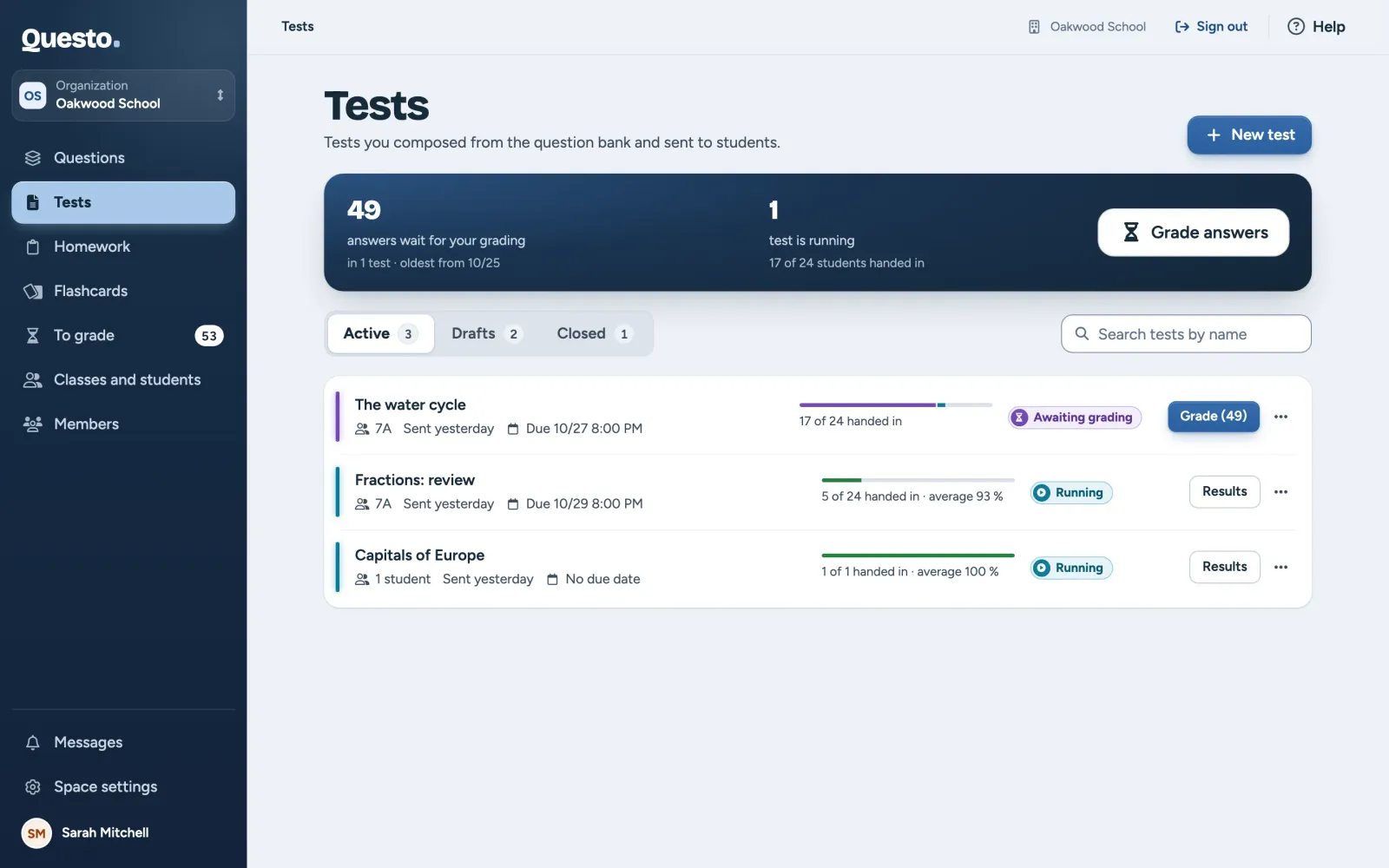
A test’s row shows who got it (classes, guests through the public link), when it was sent or closed, its due date, how many students handed in and the average. Click the row to open the test’s results; a draft opens for editing. The button at the end of the row is Grade with the number of waiting answers when something waits for you, otherwise Edit (a draft) or Results. More actions are in the menu (three dots): Send to more, Copy public link, Turn on public link (with the link on, Manage public link), Duplicate, Close test and Delete test. For a colleague’s test you cannot change, the menu has only Duplicate and, with the link on, Copy public link.
In an organization you see your own tests and your colleagues’ shared tests. The space’s owners and admins see every test.
A test’s results
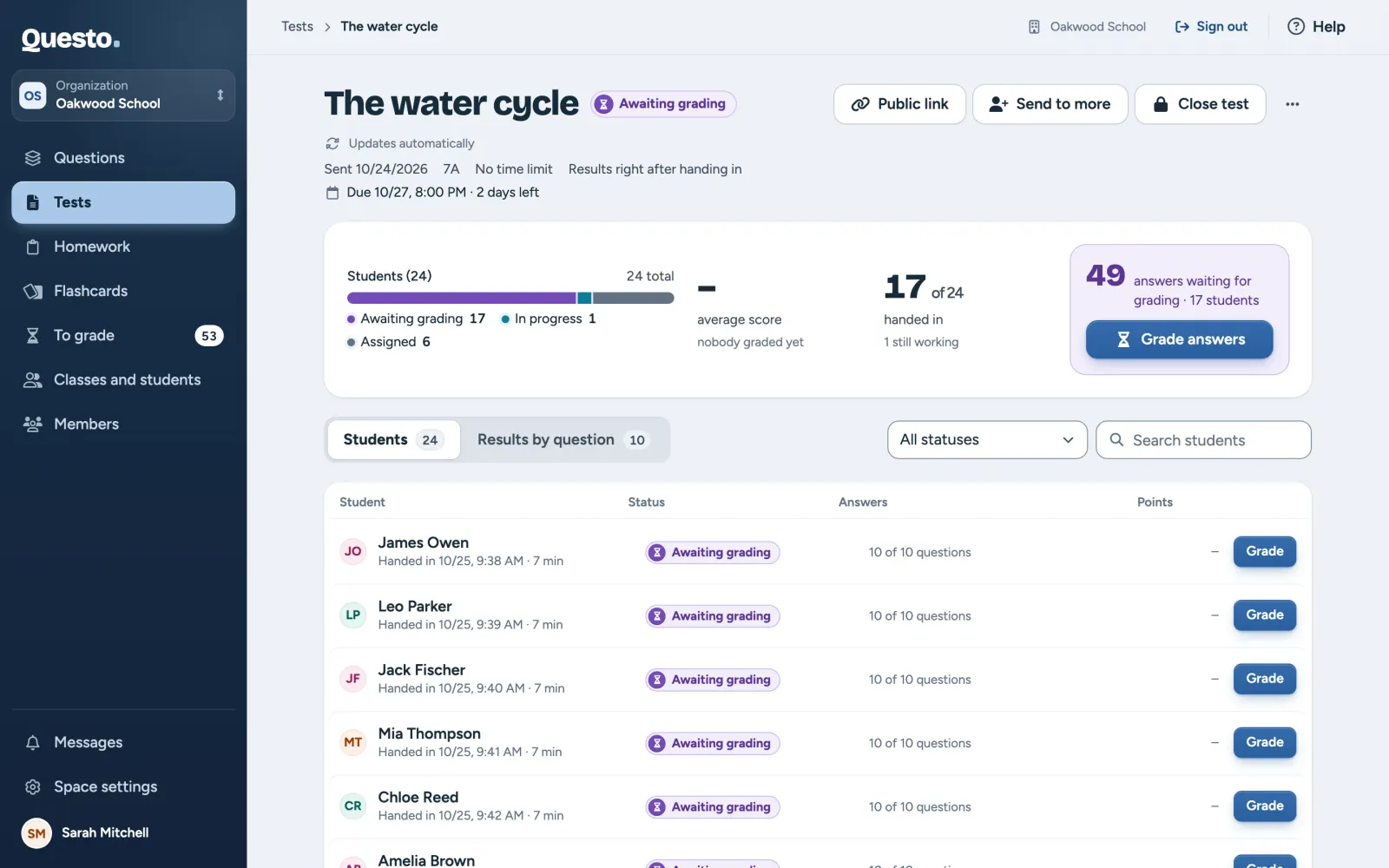
Open a sent test by clicking its row. At the top are its name, status and summary: when and to how many recipients it was sent, the time limit, when students see results and the due date. While the test is running, the page updates by itself.
Below is the overview:
- Students: how many have not opened the test yet, are filling it in, have handed in or are graded.
- “average score”: counts only the graded students.
- “handed in”: how many recipients have handed in, and how many ran out of time or are filling it in right now.
- The grading box: how many answers wait for grading (button Grade answers), or how many students wait for their grading to be finished (button Finish grading).
While the test is running, the buttons Public link, Send to more and Close test are at the top. In the More test options menu you can Duplicate test, Edit name and instructions or Delete test. A colleague’s shared test has none of the buttons at the top, and its menu has only Duplicate test.
If nobody has opened the test yet, the page says “Nobody has started yet” and lists who got it.
Students and results by question
The results have two tabs.
Students lists every recipient: the status, how many questions are answered, and the points. Students waiting for your grading are at the top. Narrow the list with the status filter (“All statuses”, “Awaiting review”, “Graded” and more) or with “Search students”; the search ignores accents. Guests from the public link are marked “Guest”. Grade or View opens a student’s answers.
A student’s status:
- “Assigned”: the test was sent; the student has not opened it yet.
- “In progress”: the student is filling it in right now.
- “Submitted”: the test is handed in, but the student does not see the result yet (it waits for the others).
- “Awaiting review”: something waits for you.
- “Graded”: the result is complete and the student sees it.
- “Time expired”: the time limit or due date passed before hand-in, or you closed the test; the answers saved until then count.
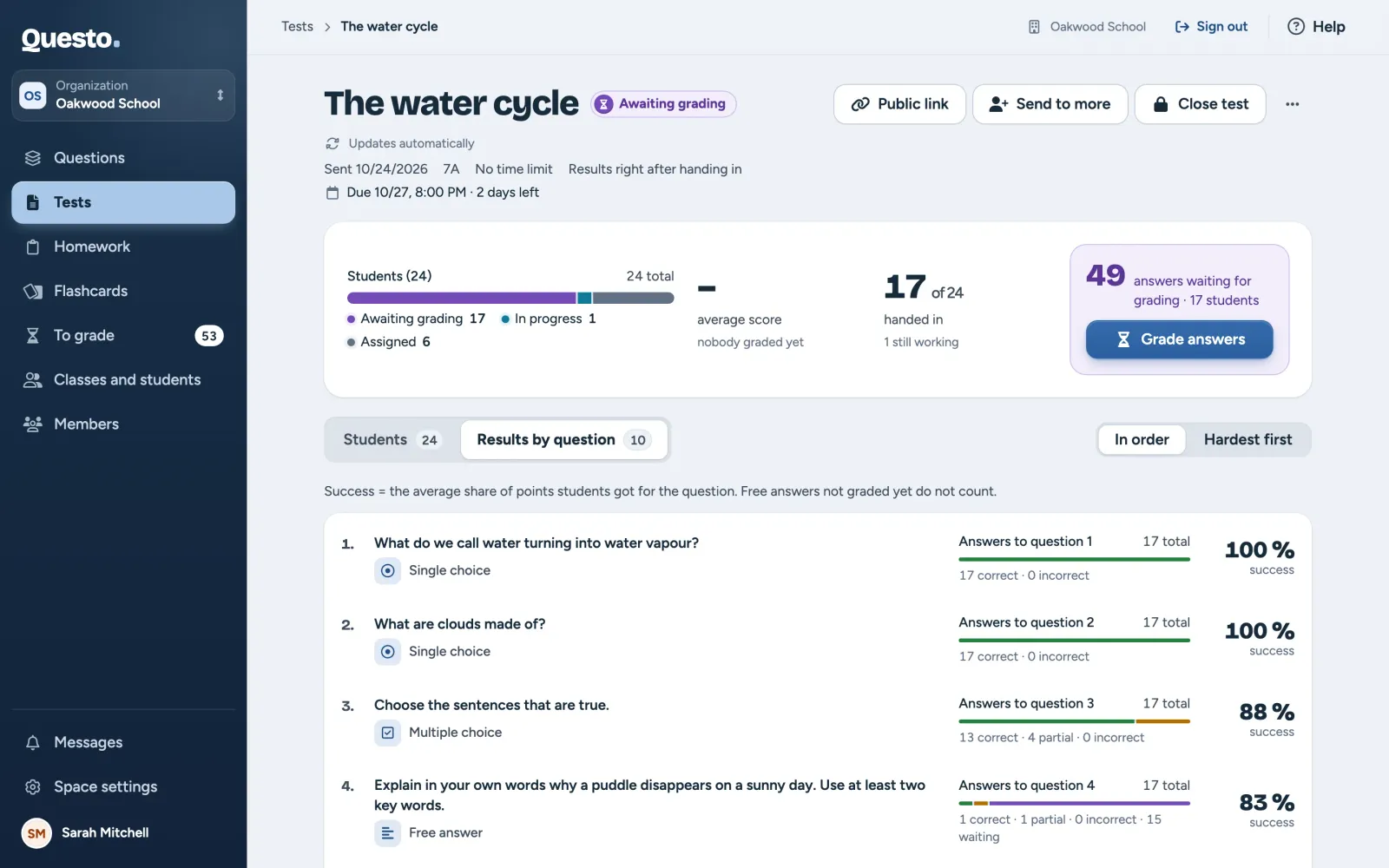
Results by question shows how each question went: the average share of points students got for it, and how many answers were correct, partial and incorrect. Free answers not graded yet do not count. Sort the questions In order or Hardest first. For a hard choice question Questo also shows the most frequent wrong answer. Click a question to open its detailed results.
One student’s answers
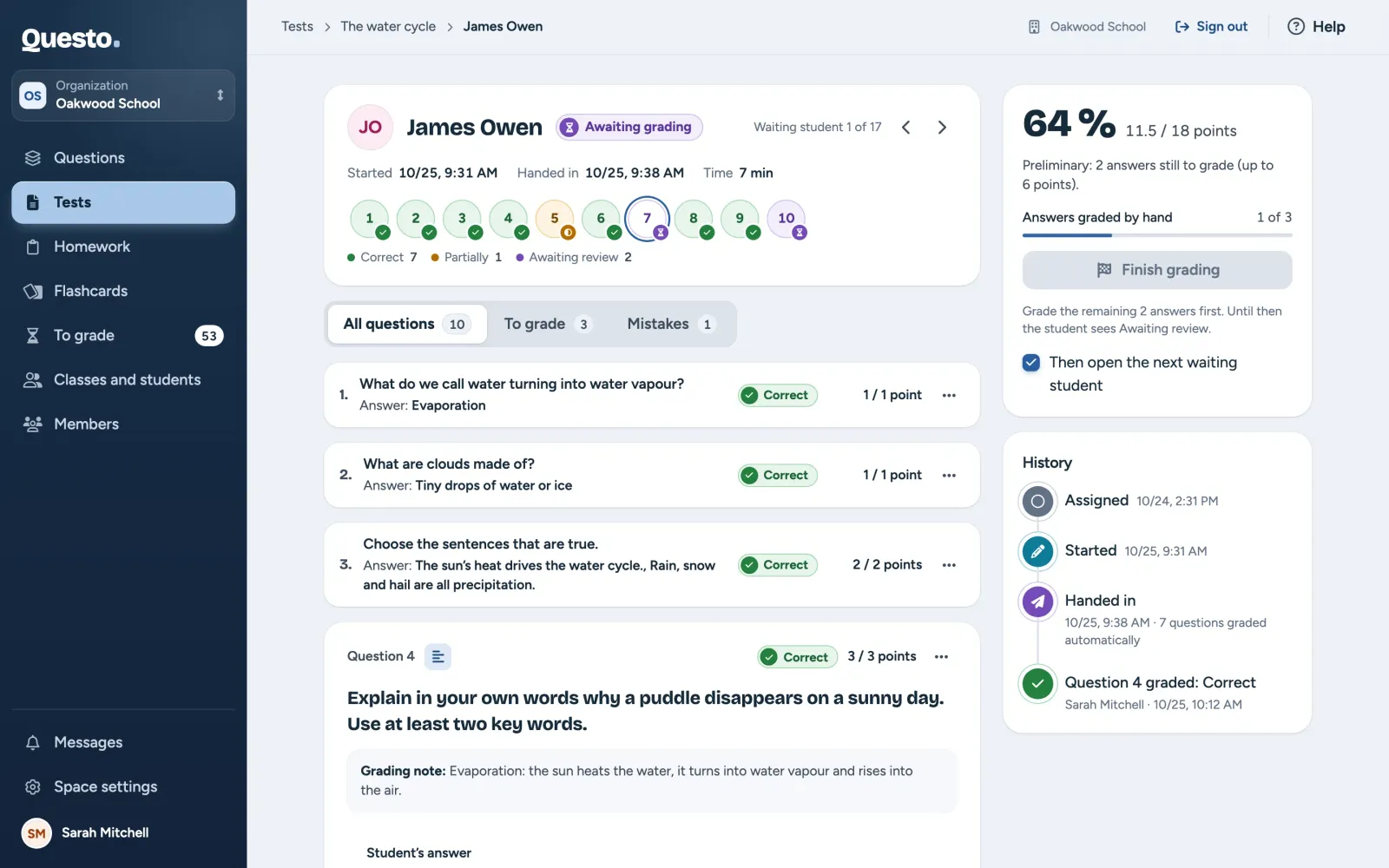
A student’s page shows all their answers in the test: what was marked automatically and what waits for you.
- At the top are the name, the status and how the test was taken (when it was assigned, started and handed in, and how long it took). The question numbers show each question’s result; click one to jump to it.
- The tabs All questions, To grade and Mistakes choose which questions are shown.
- Each question shows the student’s answer and the correct one. You grade a free answer or a drawing right here (see Grading tests).
- On the right are the student’s points and percentage, Finish grading and the “History” of the student’s test.
- Below the questions you can write an “Overall comment for the student”. It saves by itself and the student sees it at the top of the result.
The arrows next to the name move to the previous or next waiting student. Back to test results returns to the overview.
One question’s results
Open a question’s detailed results from the Results by question tab. Previous and Next question move between the test’s questions. What the page shows depends on the question type:
- Fill in the gaps, matching and ordering: the success of each gap, pair or item, hardest first, and the most frequent mistake. Questo marks the parts fewer than half of the students got right.
- “Short answer”: what students wrote, grouped by value. An answer Questo did not accept can be marked Accept as correct: either for everyone who wrote it (they are re-scored) or for one student only. Take back undoes it.
- “Hotspot”: where students tapped. Edit the area lets you enlarge, shrink or move the areas; after Save and re-score every student is re-scored.
- Other types have no success rate by part; you find the answers with each student.
Accepting an answer for everyone and editing the areas change the result of every student concerned, and students see the new result. To change one student’s result, use Override result in their answers.
The public link
Besides the students of the space, you can share a test through a public link. Anyone with the link takes the test as a guest; they only enter a name. Guests appear in the results marked “Guest”.
- In a running test’s results, click Public link (or Turn on public link in the test’s menu).
- Turn the switch on and copy the link with Copy link.
- Send the link to whoever needs it.
Guests have their own monthly limit in the space and do not count into the sending limit. If the link reaches the wrong people, click Create a new link: the old one stops working, and the results of guests who handed in stay. Once the link is off, nobody can open the test through it; turning it on again creates a new link.
Closing, duplicating and deleting
Close test ends answering. Tests in progress or not opened move to “Time expired”, and only the answers given so far count. The public link stops working. Closing cannot be undone. A test with a due date closes by itself at that time (see Composing and sending a test).
Duplicate makes a new draft with the same questions and settings and opens it. It helps when you want to send the test to another group with other questions or rules. Questions no longer in the bank are left out of the copy.
Delete test deletes the test and every student’s answers; students no longer see their results. If anyone has started the test, you confirm by typing its name. To just stop answering, close the test instead.
The test’s author and an owner or admin of the space can send a test to more students, close, edit and delete it and manage its public link. Anyone who sees a test can duplicate it and send the copy themselves.