Grading tests
What Questo marks by itself, how to grade free answers by question or by student, how to finish grading, and what is in To grade.
On this page6
Questo marks most answers in a test by itself as soon as they are handed in. You only grade free answers and drawings, and then finish the grading so the student sees the result. Everything that waits for you is in one place, To grade.
What is marked automatically
Questo marks every question type except “Free answer” and “Drawing” by itself. Multiple correct answers, fill in the gaps, matching, ordering and hotspot questions get partial points as the question is set up (see Editing a question). A question left unanswered counts as incorrect.
You can change an automatic result for one student (see One student’s answers). You can accept a short answer later for everyone who wrote it, and edit the areas of a hotspot question; the points are then re-scored (see One question’s results).
Grading a test’s answers
There are several ways to open a test’s grading:
- in To grade, with Evaluate next to the test,
- in Tests, with Grade on the test’s row or Grade answers at the top,
- in the test’s results, with Grade answers.
The “Grading answers” page opens with all of the test’s free answers and drawings that wait.
- At the top, choose how to go through them: By question (one question for all students in a row) or By student (all answers of one student).
- If you would rather not see whose answer you are grading, turn on “Hide student names”. Students then show as Student 1, Student 2 and so on.
- For each answer choose Correct, Partially or Incorrect. For a partial answer, enter the points.
- Add a comment writes a comment for the student. The student sees it next to their answer.
- After Correct and Incorrect the next answer opens right away. Grading saves by itself.
Above the answers are the question’s prompt with its points, the model answer, the explanation and the grading note, so you always have them in view. For a drawing you see the model solution next to it.
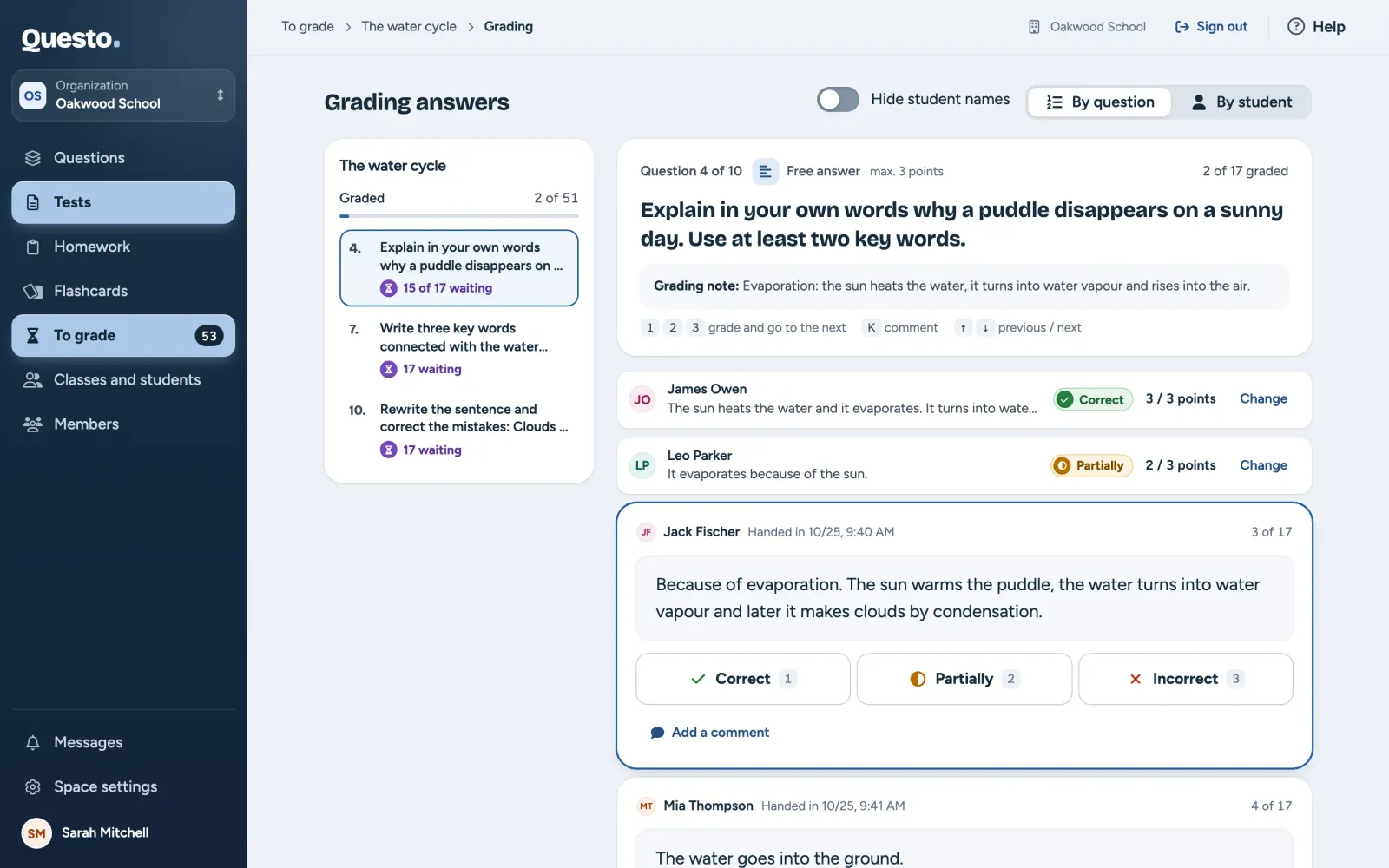
On the left you see how much is graded and what still waits for each question (or student); click one to open it. After the last answer the next question or student opens by itself. The button below the answers takes you there right away. When something also waits in your other tests, the page shows it under “Also waiting in other tests”.
On a computer you can grade with keys: 1 Correct, 2 Partially, 3 Incorrect, K comment, and the up and down arrows for the previous and next answer. After 1 and 3 the next answer opens; after 2 you enter the points.
On a phone you grade one answer at a time with large buttons. Previous and Skip move on without grading; for a partial answer, save the points with Save … and next. The Grading options menu hides or shows names, switches between going by question and by student, or goes to another question or student. Exit returns to the test’s results.
Finishing the grading
Students see their result and your comments once you finish grading. When every answer is graded, the page says “Grading waits for your confirmation” and lists the students ready to finish.
- If you like, look through a student’s answers once more with Review.
- Click Finish grading (the button shows for how many students).
The students then see their results in the app. You can still change the grading afterwards; the student sees the new result.
One student’s answers and overriding a result
On a student’s page (Grade or View in the test’s results) you grade all their answers together:
- Show only the answers waiting for you with the To grade tab.
- Grade the free answers and drawings (Correct, Partially, Incorrect, and a comment if you like).
- If you like, write an “Overall comment for the student” below the questions. It saves by itself.
- On the right, click Finish grading. While something is left to grade, the button cannot be used and the student sees “Awaiting review”.
Tick “Then open the next waiting student” to go straight to the next student after finishing.
For a question Questo marked automatically, open the Question options menu and choose Override result. Overriding changes the points for this student only. The same menu opens the question in the bank (Show the question in its set).
To grade
To grade in the navigation on the left collects everything that waits for you: free answers from tests and handed-in homework. The waiting count also shows next to the item in the navigation. It lists your tests and homework, the ones you created.
- At the top is the number of waiting answers from tests and of handed-in homework. Start with the oldest opens the grading of what has waited longest.
- The tabs All, Tests and Homework choose what is shown.
- Sort by “Oldest first”, “By deadline” or “Most waiting”.
- Each row is one test or homework with its number of waiting answers or works. For a test where everything is graded, the row says how many students wait for their result to be finished. Click the row or Evaluate to open its grading.
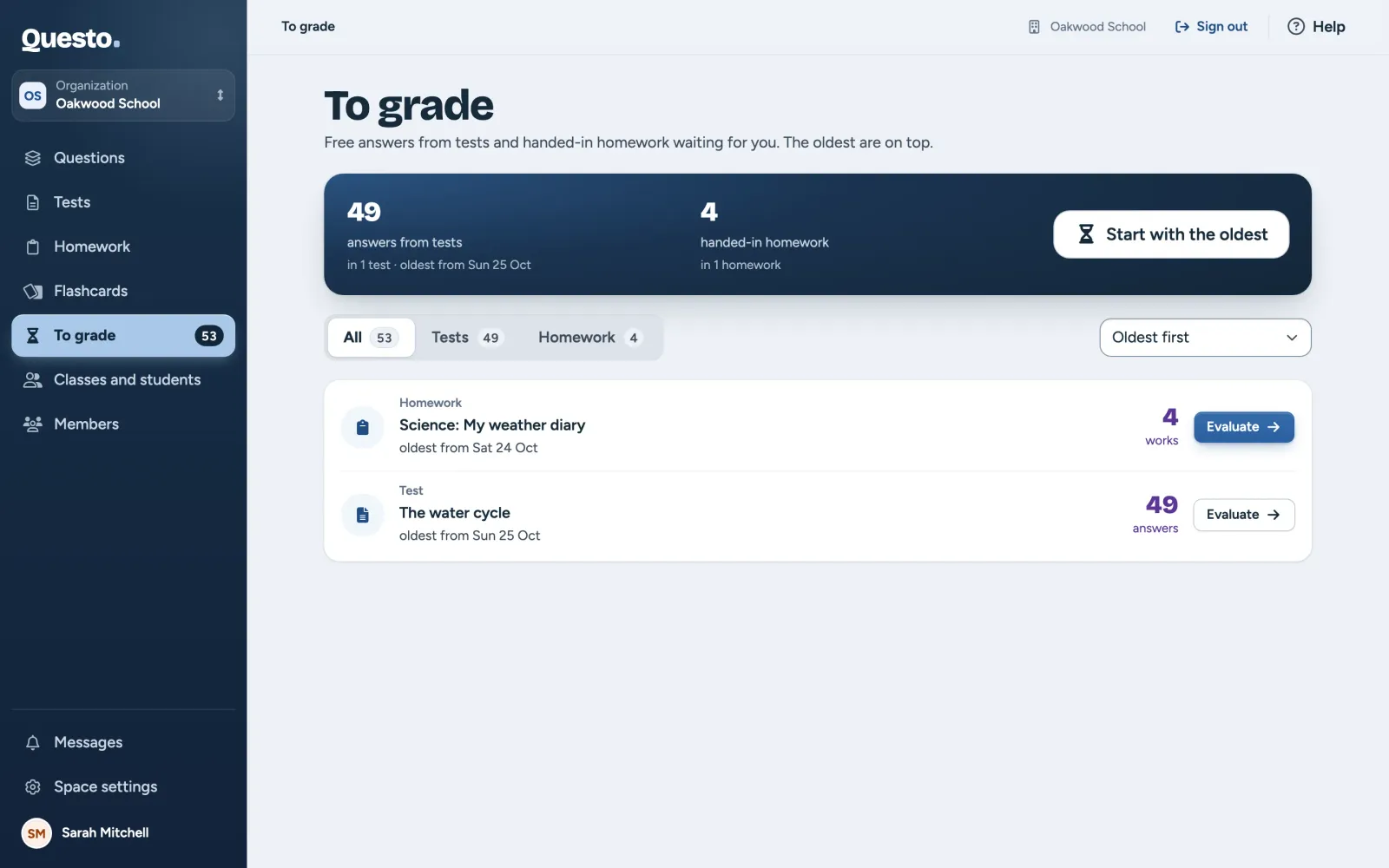
When everything is graded, the list is empty. Checking handed-in homework is described in the guide to checking homework.
When students see their results
It depends on what you chose under “When students see results” while composing the test (see Composing and sending a test):
- “Right after handing in”: a test without free answers is graded as soon as it is handed in. Free answers are added once you grade them and finish grading.
- “After the teacher checks”: every handed-in test waits for you, even when Questo marked all of it. The student sees the result once you finish grading.
- “When everyone has handed in”: results are released to all at once, when the last student hands in or when you close the test. You can grade free answers before that.