Composing and sending a test
How to compose a test from your question bank, set the time limit, due date and when results show, and send it to a class, chosen students or through a public link.
On this page7
You compose a test from the questions already in your bank. Points and length add up by themselves, and changes save as you go. When the test is ready, send it to a class, chosen students or through a public link. Following the results is described in Tests and their results.
A new test
- Open Tests and click New test.
- Questo creates a draft called “New test” and opens it. Change the name on the Settings tab.
You can also start from the bank: in Questions, tick the questions, click Add to test, choose “To a new test” and click Create test. The same way you add questions to a draft you already have (“To a test in progress”).
At the top of the test is a summary: the number of questions, points, the estimated length, the time limit and the due date. Next to the name you see when the test was last saved (“Saved”). You find a draft in Tests on the Drafts tab.
Choosing the questions
On the Questions tab, “Questions in the test” is on the left and, on a wide screen, “Your questions” from the bank on the right.
- On the right, search for questions by text, set, type or labels.
- Add a question with Add to test on its card. To add several at once, tick them and click Add to test in the bar above the list.
- Questions already in the test are marked “In the test”.
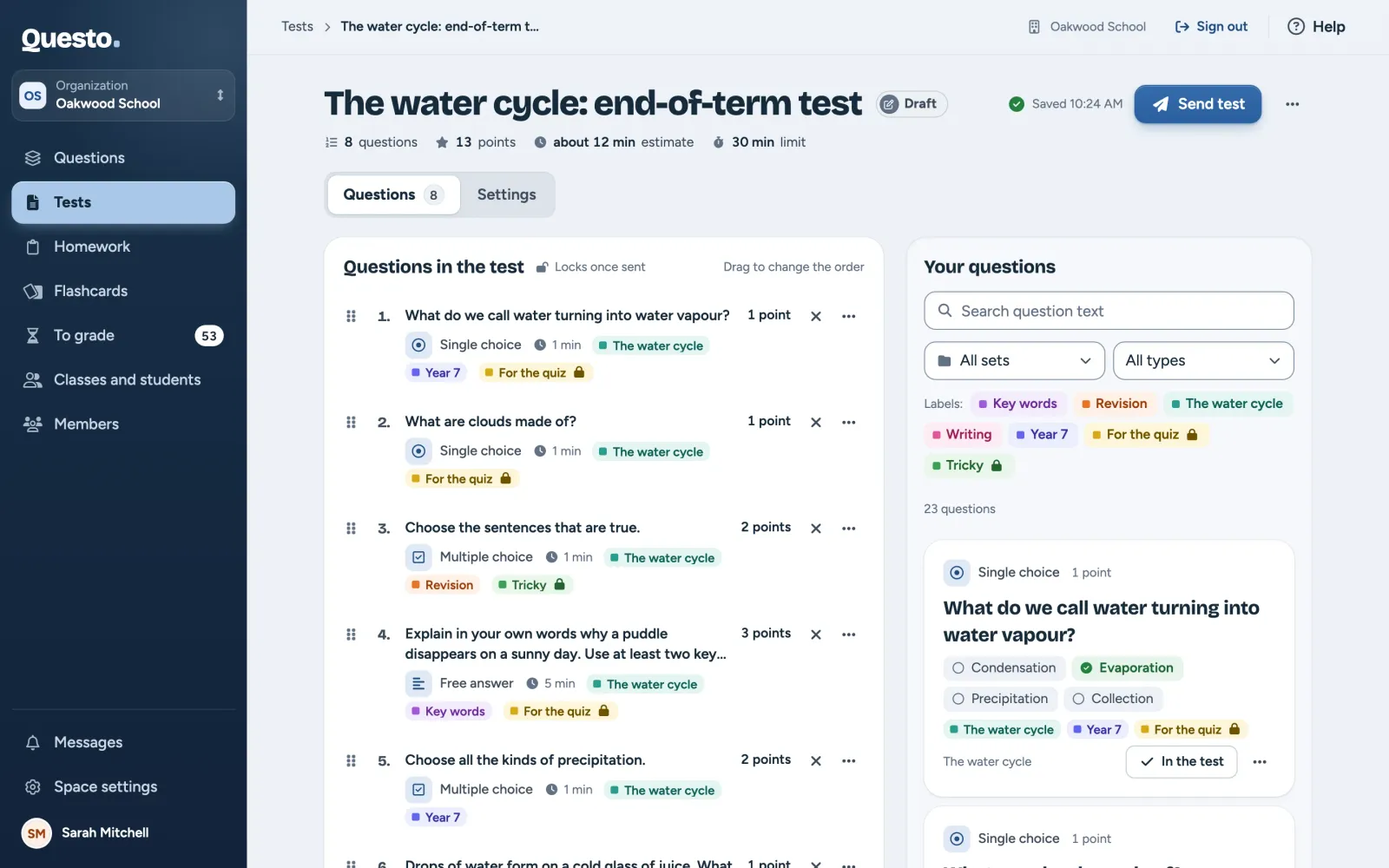

On a smaller screen or a phone, open the bank with Add questions from the bank. Tick what you want and confirm with the button at the bottom.
Change the order by dragging a question by its handle, or with Move up and Move down in the question’s menu (on a phone only through the menu). Remove from test takes a question out; right after, Undo in the notice brings it back. Below the list are the total points and the estimated length and, with a time limit, whether the questions fit into it.
If someone deletes a question from the bank meanwhile, the test points it out. Remove such a question before sending.
Settings
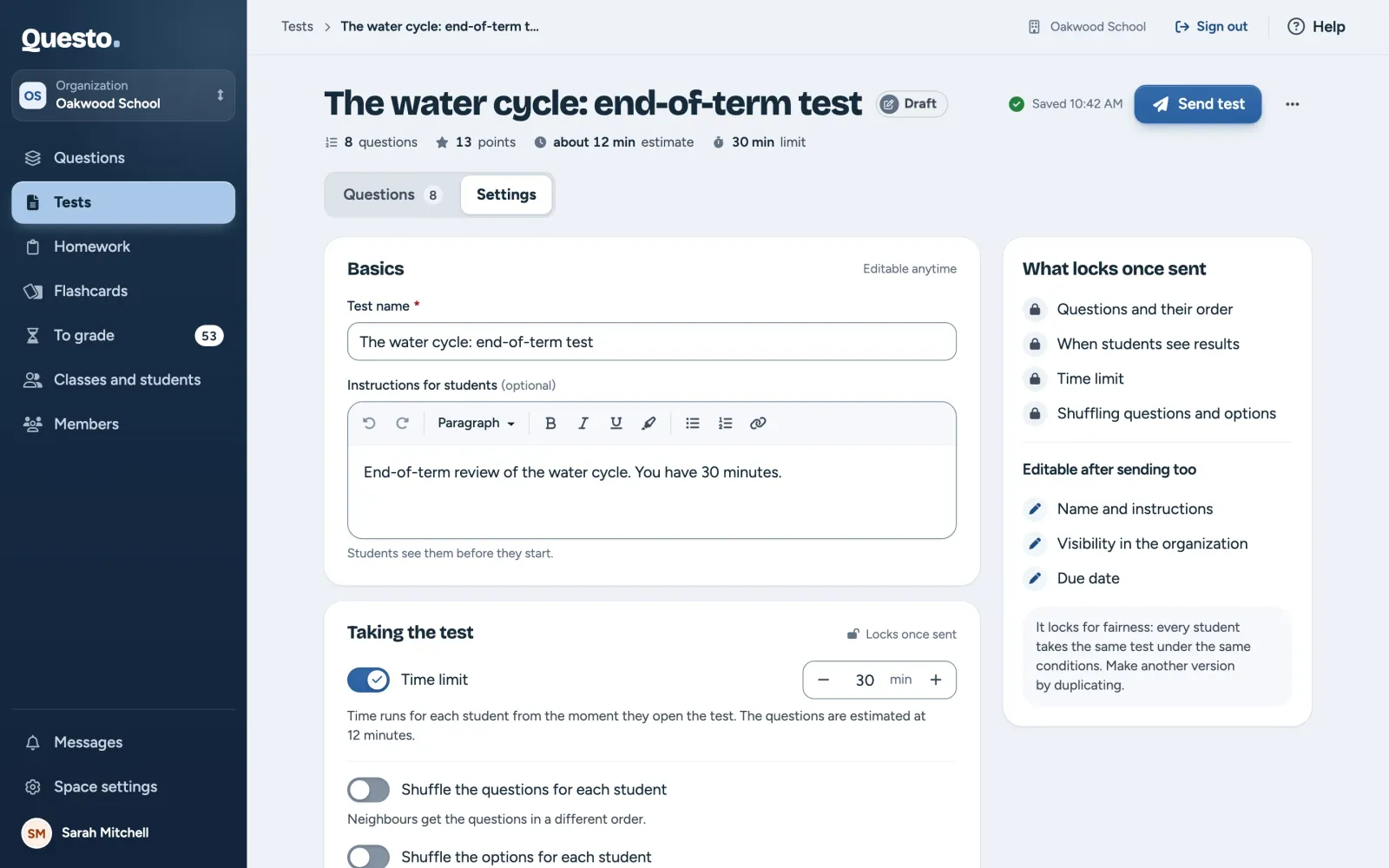
The Settings tab has four parts (five in an organization):
- “Basics”: the “Test name” and the “Instructions for students”, which students see before they start.
- “Taking the test”:
- “Time limit”: once on, set the minutes. Time runs for each student from the moment they open the test. When it runs out, the test is handed in with the answers given so far.
- “Shuffle the questions for each student”: neighbours get the questions in a different order.
- “Shuffle the options for each student”: in choice questions every student sees the options in a different order.
- “When students see results”:
- “Right after handing in”: students see their result at once; free answers are added once you grade them. This is the default.
- “After the teacher checks”: you check and confirm each student’s result first.
- “When everyone has handed in”: results are released to all at once, when the last student hands in or when you close the test.
- “Due date”: turn on “Close the test automatically” and pick the date and time. At the due date the test closes itself, as if you clicked Close test. Students see the due date in their overview. Whoever opens the test just before it has less time.
- “Visibility in the organization” (organizations only): a “Private” test is seen only by you and the space managers; a “Shared” one is seen by the organization’s teachers, who can copy it.
Sending
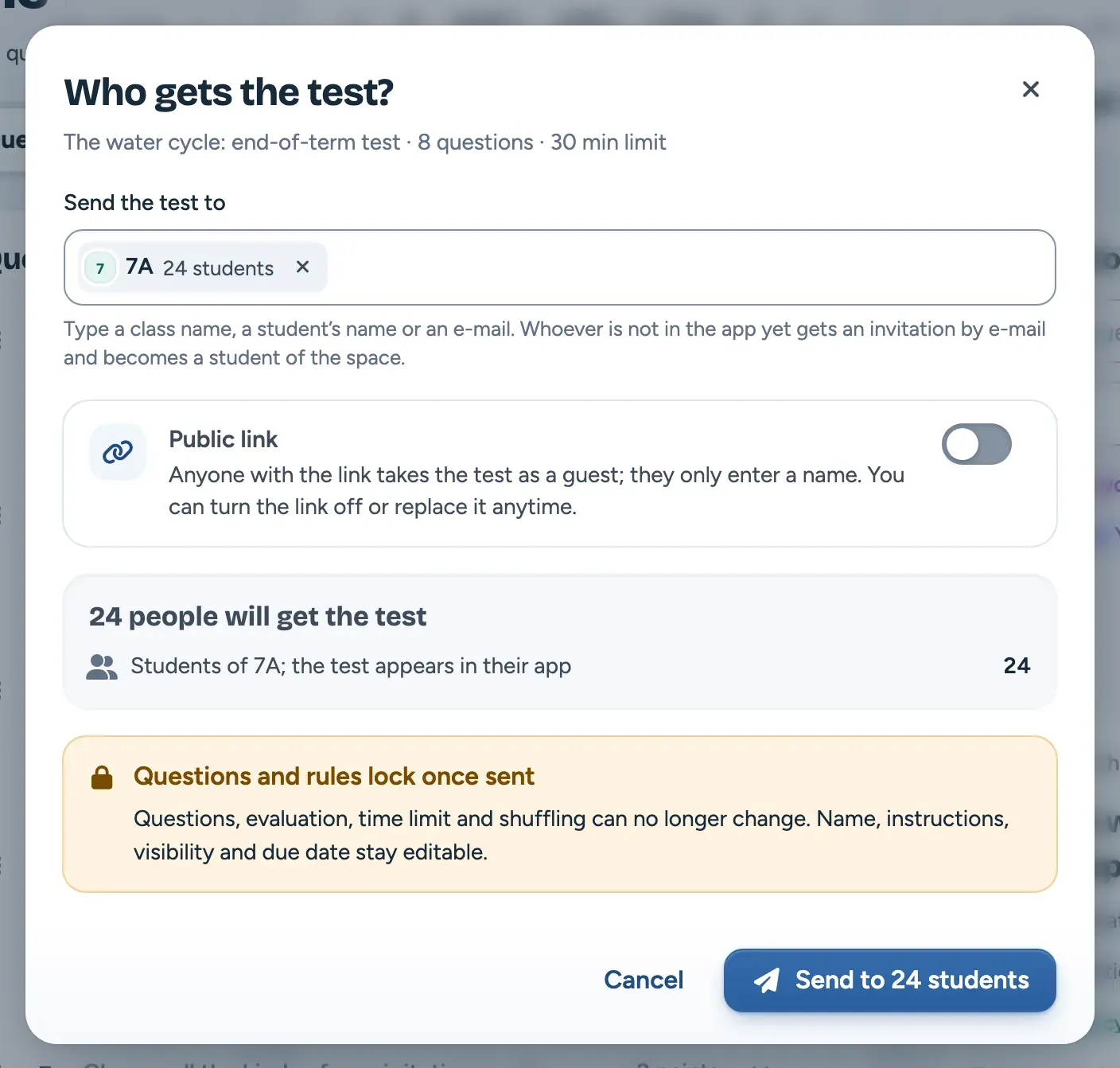
- Click Send test. The button works once the test has at least one question.
- In “Send the test to”, type a class name, a student’s name or an e-mail and pick it from the list. Press Enter to add a full e-mail. You can add several classes and students this way.
- If you like, also turn on the “Turn on the public link” switch: anyone with the link can then take the test as a guest (see The public link).
- Check the summary: how many people will get the test, who has it already (they will not get it again) and, if the plan has a limit, how many sends are left this month.
- Click the Send button (it shows how many students will get the test).
What happens after sending:
- The test appears in the students’ app. Students with an e-mail also get an e-mail about it.
- An e-mail address nobody in the space has yet gets an invitation. Once it is accepted, the person becomes a student of the space and sees the test.
- A student who already has the test does not get it twice.
- The test’s questions and rules lock (see below) and the test moves to the Active tab.
After sending, Show the test’s progress shows who has started and handed in.
A class gets the test as it is at the moment of sending. A student who joins the class later does not get it automatically. Send it to them with Send to more (see below).
What locks once sent
So that every student takes the same test under the same conditions, after the first send you can no longer change:
- the questions and their order,
- when students see results,
- the time limit,
- shuffling questions and options.
The name, instructions for students, due date and, in an organization, the visibility stay editable: in the test’s results, use Edit name and instructions in the menu. If you need other questions or rules, duplicate the test (Duplicate as a new test) and send the copy. Changes to questions in the bank no longer affect a sent test.
Sending to more students
Send a running test to more students with Send to more in the test’s results, or in the test’s menu in the list. It works like the first send. New students get the same questions and rules as the others; whoever has the test already does not get it again. A closed test cannot be sent to more.
Only the test’s author and an owner or admin of the space can send it to more students. You can duplicate a colleague’s shared test and send the copy.
The sending limit
The space’s plan sets how many sends it has each month. Every student you send a test or homework to is one send. If the plan has a limit, the sending window shows how many sends are used this month and how many this one adds. During a trial the sends count for the whole trial. The public link does not count into this limit; guests have their own monthly limit.
When the sends run out, the window says “The test cannot be sent now” and when the counter resets. The test stays saved. A higher limit or a package of sends is ordered by an owner or admin of the space in Space settings; a teacher can tell them right away with Write to a space manager.