Checking homework
How to go through handed-in homework, accept the work, return it for rework with a comment or reject it, and what the hand-in history shows.
On this page9
You look at a student’s handed-in work on one screen: the text, photos of the exercise book and files, next to them the brief, the history and your evaluation. You accept the work, return it for rework, or reject it, and the student gets a message with the result and your comment. How to assign homework is in Setting homework.
Where to find work to evaluate
Handed-in work waits for you until you evaluate it. There are several ways to it:
- Homework: a homework with waiting work has an Evaluate (3) button. It opens the oldest waiting work.
- An assigned homework’s page: Evaluate (3) in the header, or Evaluate at a particular student.
- To grade in the navigation on the left: free answers from tests and handed-in homework in one place, the oldest on top. The navigation shows how many are waiting. The Homework tab shows homework only. See also Grading.
- Messages: when a student hands in, the author of the homework gets a message linking straight to the work. Once everyone has handed in, a summary follows.
The To grade page and the hand-in messages belong to the homework’s author. You can evaluate a colleague’s shared homework from its page under Homework.
The evaluation screen
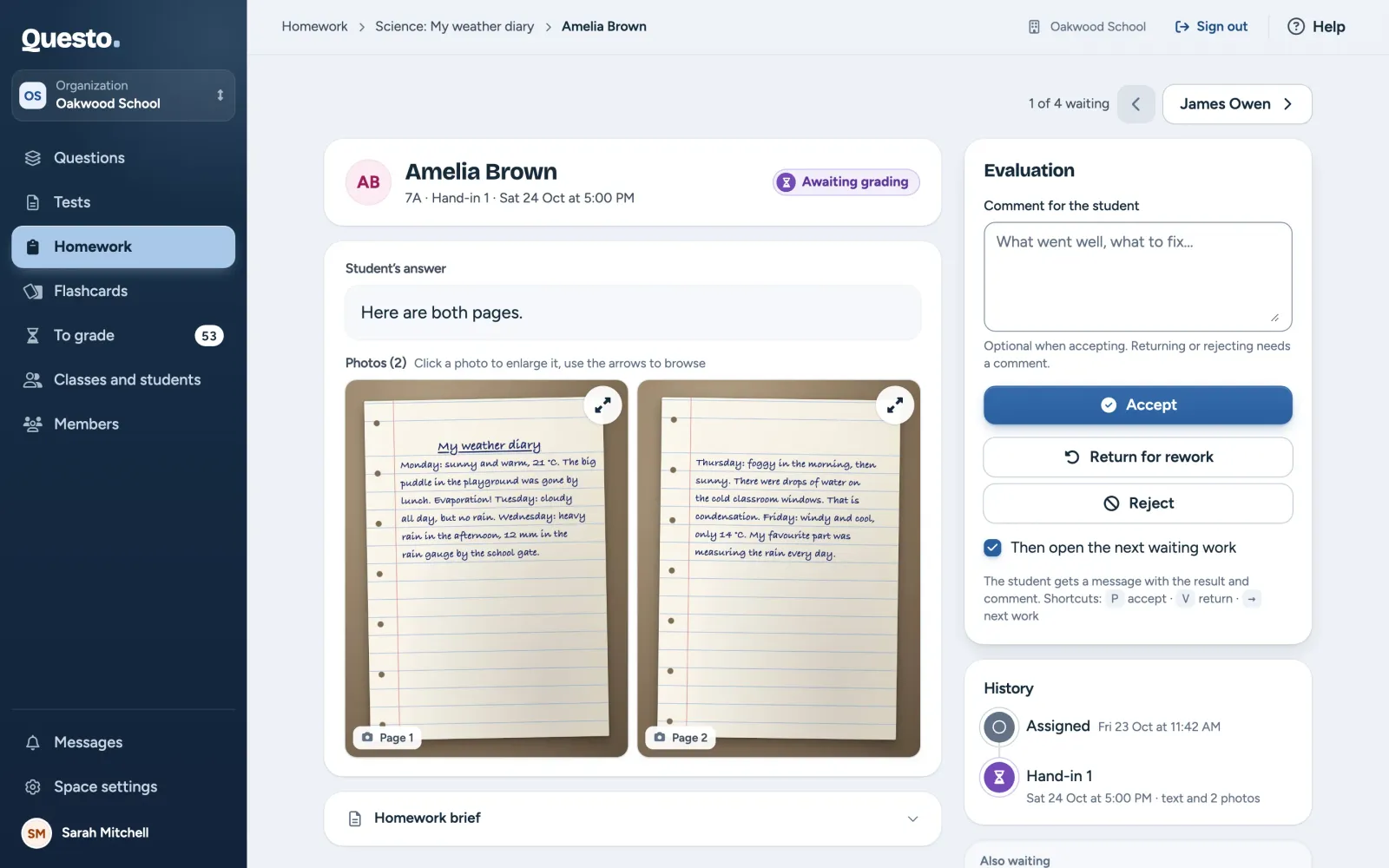
- At the top right you see which of the homework’s waiting works this is, for example “1 of 5 waiting”. The left arrow goes to the previous one, the button with the next student’s name to the next one.
- Student and hand-in: the name, the class, which hand-in this is and when it arrived. Late work has an “Overdue” badge and, under it, by how much.
- The handed-in work: the student’s text and, under it, photos and files. Click a photo to enlarge it. In the photo viewer you browse with the arrows, rotate or zoom the photo.
- “Homework brief” under the work expands when you want to look at the brief again.
- “Evaluation” on the right has the comment for the student and three buttons. Under it is the “History”.
Accepting the work
- If you like, write what went well in “Comment for the student”. A comment is optional when accepting.
- Click Accept. With a comment typed, the button reads Accept with comment.
The student gets a message that the homework is accepted and sees your comment with the homework.
Returning for rework
When the student should fix or complete the work, return it.
- In “Comment for the student”, write what to fix. The work cannot be returned without a comment.
- Click Return for rework.
The student gets a message with your comment, fixes the work and hands it in again. It then shows up among the waiting work again. Above the fixed work you see your comment on the previous hand-in and a Show hand-in 1 button. Photos that were not in the previous hand-in are marked “new”.
Rejecting
Rejecting is for work that is no longer worth fixing, for example handed in by mistake or copied.
- In “Comment for the student”, write why you reject the work. It cannot be rejected without a comment.
- Click Reject.
The homework closes as rejected for the student, who can no longer hand it in. They see the comment in a message and with the homework.
A saved evaluation cannot be changed. Only waiting work can be evaluated. You evaluate returned work again once the student fixes it and hands it in.
The next work and keyboard shortcuts
Under the buttons is a checkbox, “Then open the next waiting work”. With it ticked, the next work of this homework opens after each evaluation, the oldest first. The choice is kept until you close the browser window or tab.
On a computer you can evaluate from the keyboard while you are not typing a comment:
- P accepts the work (with the comment, if one is typed),
- V returns it for rework (a comment must be typed; otherwise the cursor moves to the field),
- right arrow and left arrow open the next or the previous waiting work.
When you evaluate the last waiting work with this choice ticked, Questo shows “All handed-in work is evaluated” with a summary of accepted, returned and rejected work. Under “Also waiting” are other homework and tests with waiting work. Back to the homework takes you to the homework’s page.
The hand-in history
The “History” panel shows when the homework was assigned, every hand-in of the student (when it arrived, what it held, whether it was late) and every evaluation with the teacher’s name, the date and the comment. Click an earlier hand-in to view it. The top of the page then says which hand-in you are viewing and offers Back to the current hand-in.
Evaluated work has its history too: on the homework’s page, click Show at the student.
On a phone
On a phone, the evaluation sits in a bar at the bottom: a speech-bubble button for the comment, Accept, Return for a fix and Reject. When you return or reject without a comment, a window opens with the field “What should the student fix?” or “Why do you reject it?”. The same bar is in the photo viewer, so you can evaluate the work right over the photo.
After closing a homework
You can still evaluate waiting work after closing a homework. A student whose work you return after closing, however, can no longer fix and hand it in. More about closing in Homework.