Setting homework
How to write homework, attach a worksheet, set the deadline and visibility, and assign it to a class, chosen students or e-mail addresses.
On this page7
You write homework in the editor: the title, the brief, attachments and the deadline. Save unfinished homework as a draft and assign it to students when it is ready. The homework overview and what you can do with assigned homework are in Homework.
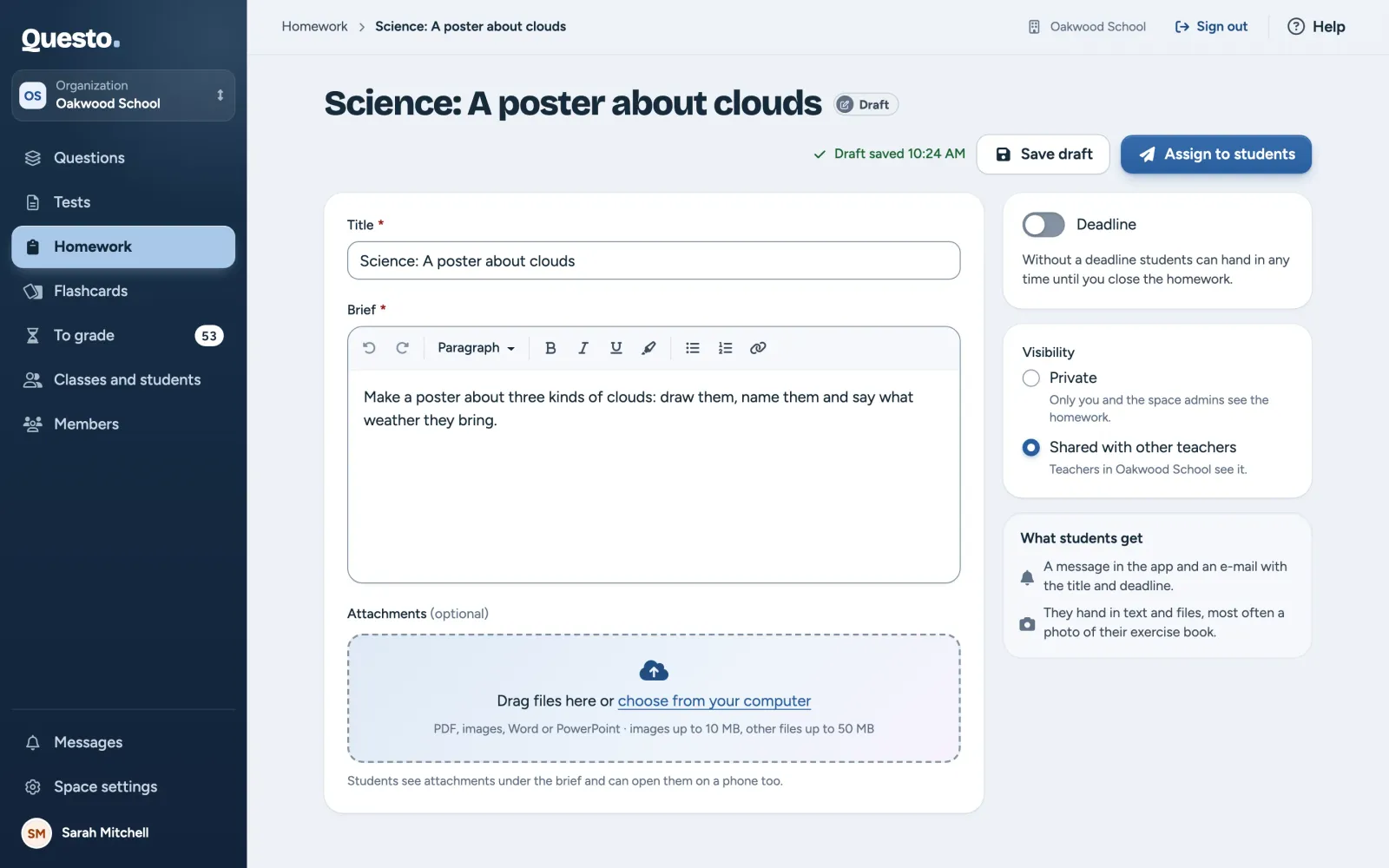
Writing the brief
- Open Homework and click New homework.
- In “Title”, name the homework, for example “Essay: My best trip”. Students see it in their overview and in the e-mail.
- In “Brief”, describe what students should do: the steps, the length and how to hand it in. You can format the text.
The title and the brief are required. A draft can be saved with just a title, but only homework with a brief can be assigned.
Attachments
You can attach a worksheet, a picture or a PDF to the brief. Attachments are optional.
- Drag files into the box under the brief, or click choose from your computer.
- Wait until the files are uploaded. You can open an uploaded file in a preview, or remove it again.
You can upload PDF, images, Word and PowerPoint. An image can be up to 10 MB, other files up to 50 MB. Students see attachments under the brief and can open them on a phone too.
Is the file bigger? Make it smaller, or upload it to your school drive, for example, and put a link in the brief.
Deadline
The deadline is optional.
- Switch on “Deadline”. Questo fills in a week from today at 20:00.
- Adjust it in “Date and time”.
Students can still hand in after the deadline; the work is marked as late, and you see by how much. Without a deadline, students can hand in any time until you close the homework.
Visibility
In an organization you decide which teachers see the homework:
- “Private”: you see the homework. The owner and the admins of the organization see all homework of the space.
- “Shared with other teachers”: the organization’s teachers see it and can duplicate it, edit the copy and assign it to their students. Only its author, the owner and the admins can change and assign the original.
A personal space has no choice here; only you see the homework.
Saving a draft
Click Save draft. The homework is saved on the Drafts tab and students do not get it yet. From then on every change saves on its own; next to the title you see “Draft saved” with the time.
New homework exists only in the editor window until you save it the first time. If you close the page before that, the browser asks first.
Assigning it to students
- Click Assign to students. New homework is saved first, on its own.
- In “Who should get the homework?”, start typing a class name, a student’s name or an e-mail address in “To” and pick it from the list. You can choose several classes and individual students at once.
- Add someone who is not in the space yet with their full e-mail address and Enter (or Invite by e-mail). They get an invitation and are a pending student until they accept it.
- Check in the Summary how many students get the homework. Whoever has it already is skipped.
- Click the button with the count, for example Assign to 24 students.
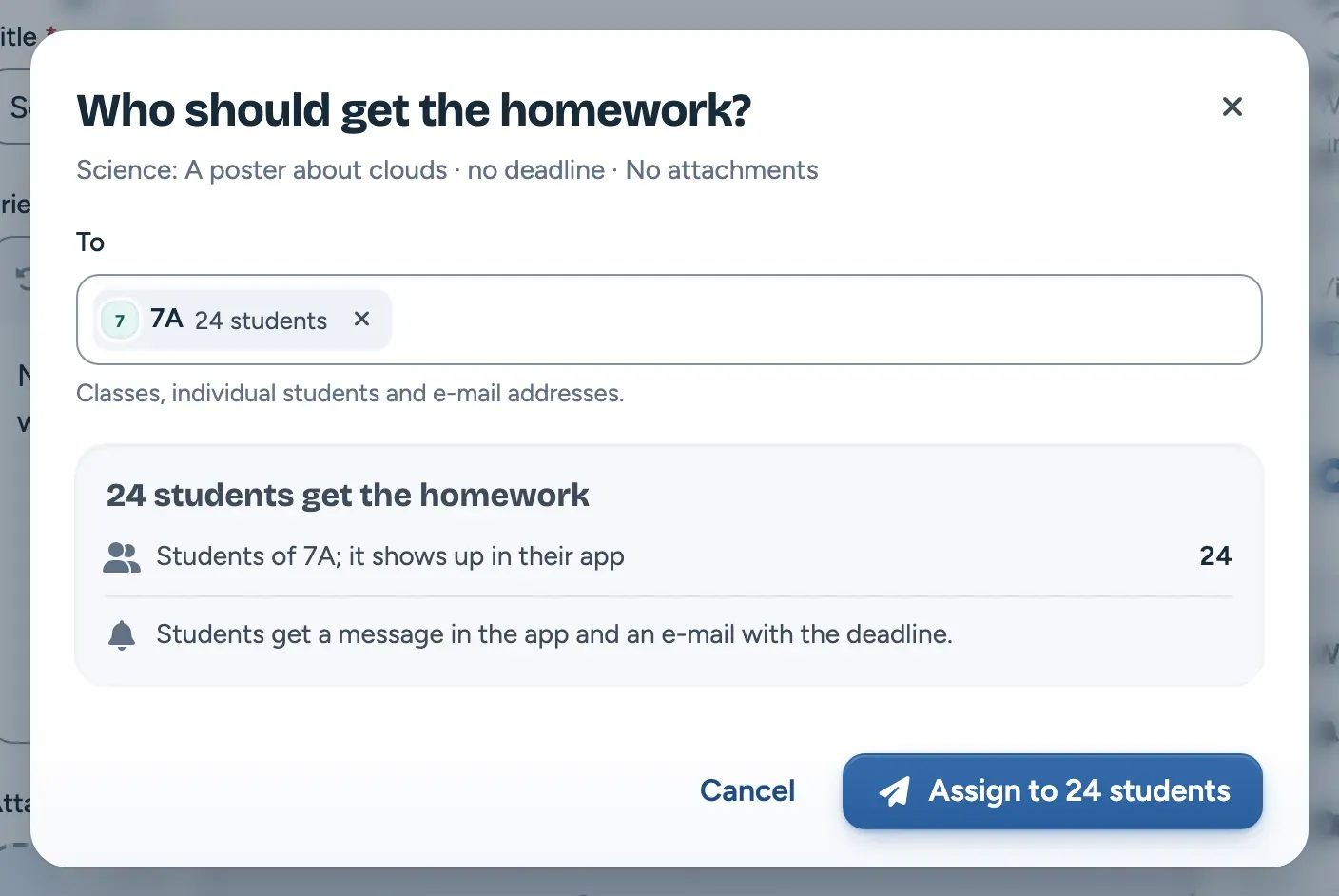
The homework moves to the Active tab and its page opens. Students get a message in the app and an e-mail with the title and the deadline. A student who signs in without an e-mail address (with a login card) sees the homework and the message in the app.
A class counts as it is at the moment you assign. A student who joins the class later does not get the homework automatically. Use Assign to more students for them.
Every student you assign homework to counts as one send against the plan’s monthly limit, as for tests. When the limit is close, the window shows how many sends are left. More about plans and limits in Space settings.
Changes after assigning
You can keep editing assigned homework: on its page, click Edit at the brief, or the three dots and Edit the brief. The editor saves changes on its own and has Back to the homework instead of Save draft. Students see the changed brief straight away, but they get no message about the change.
- Assign to more students sends the homework to more classes or students. When the deadline has passed, the window says so and offers Move the deadline. A moved deadline applies to everyone.
- Change the deadline with Move the deadline in the homework’s menu. More in Homework.
The author of a homework can edit it and assign it to more students; in an organization, so can the owner and the admins. For other teachers the editor says they cannot edit it.
How to check the handed-in work is in Checking homework.