Homework
The homework overview, what the page of an assigned homework shows, and what you can do with it next - assign it to more students, move the deadline, close it.
On this page6
A homework is a brief you write once and send to a class or to chosen students. Students hand in text or files, most often a photo of their exercise book, and you accept their work, return it for rework, or reject it. This guide covers the Homework page and the page of an assigned homework. How to write and assign homework is in Setting homework; how to evaluate the work is in Checking homework.
The homework overview
Open Homework in the navigation on the left.
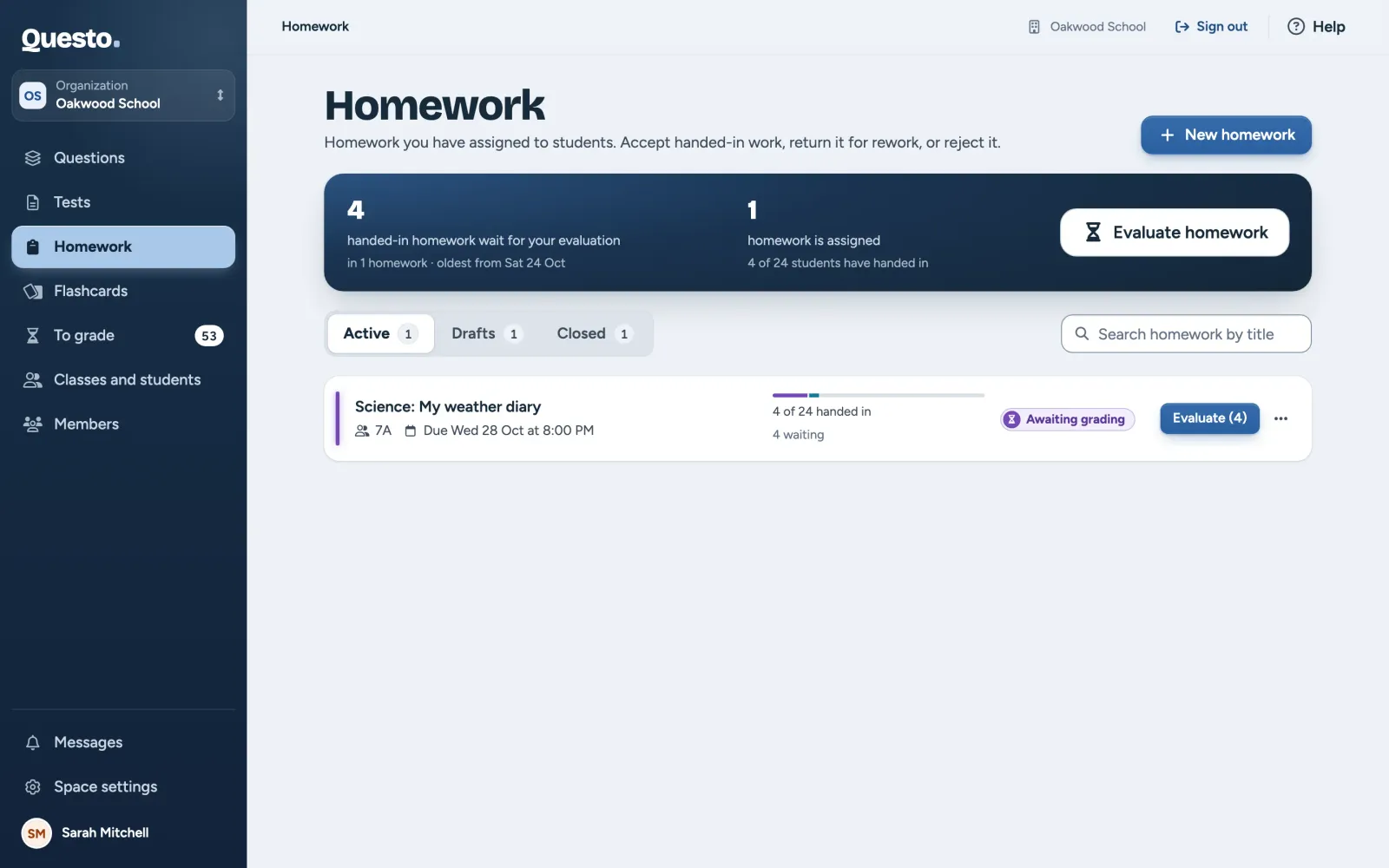
- At the top you see how much handed-in homework waits for your evaluation and how much homework is assigned right now. When something is waiting, Evaluate homework takes you to the To grade page.
- The tabs split homework by status: Active homework is assigned and students are handing it in, nobody has received Drafts yet, and Closed homework no longer takes any hand-ins.
- Search finds homework by its title across all three tabs. The counts on the tabs show how many match.
- Each row shows who has the homework (classes or a number of students), the deadline, the attachments and how many students have handed in. Under the bar is the breakdown: how much work is waiting, accepted, returned and rejected. A deadline that has passed shows in red.
The button at the end of a row changes with what is needed: Evaluate (3) when work is waiting, Edit for a draft, Detail for assigned homework and Results for closed homework. Click anywhere else in the row to open the homework. A draft opens in the editor, assigned homework on its own page.
On a phone, each homework is a card with its status, deadline and hand-in bar.
Start new homework with New homework at the top right. While the space has no homework yet, the page shows three steps of how homework works and a Create your first homework button instead of the list.
An assigned homework
The page of an assigned homework shows who has it, who has handed in and what waits for you.
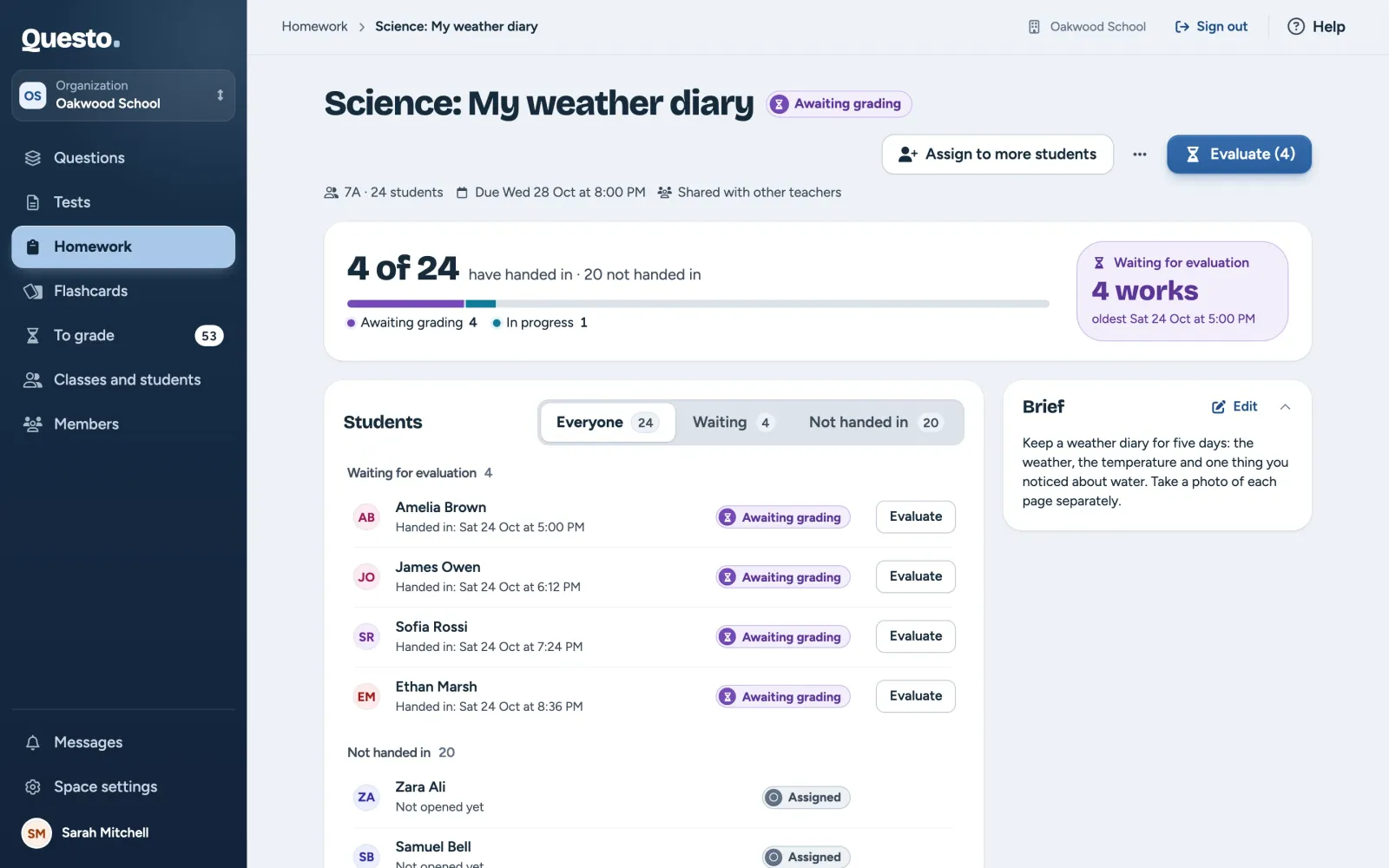
- The header has the title, the homework’s status, who has it and the deadline. In an organization it also shows whether the homework is private or shared with other teachers.
- The hand-in status shows how many of the students have handed in, how many late and how many not yet. The colours in the bar match the work’s statuses. On the right is how much work waits for evaluation and when the oldest piece arrived.
- “Students” are grouped by what you need to do: first “Waiting for evaluation” (oldest hand-in first), then “Returned for rework”, “Not handed in”, “Accepted” and “Rejected”. Each student shows a status, a late badge where it applies, and the date of the hand-in. The accepted and rejected groups are collapsed; the button under a group shows the rest.
- The filter above the list switches between Everyone, Waiting and Not handed in.
- The brief on the right shows the text and attachments as students see them. Edit changes the brief even after the homework is assigned.
Click a student with handed-in work to open it. Waiting work has an Evaluate button, evaluated work a Show button. Evaluate (3) in the header opens the oldest waiting work of this homework. What comes next is in Checking homework.
A student with unfinished work shows “Has a draft in progress”; one who has not opened the homework yet shows “Not opened yet”. You see unfinished work only once it is handed in.
What you can do with a homework
At the top right of the page are Assign to more students (for homework you can change) and a button with three dots. Every row in the homework list has the same menu. Depending on the homework’s status, it holds:
- Assign to more students sends the homework to more classes or students. Whoever has it already does not get it again. A draft has Assign to students instead.
- Edit the brief opens the editor. Changes save on their own and students see them straight away.
- Move the deadline changes the deadline for all students, or removes it. Hand-ins are then judged against the new deadline: whoever handed in before it is no longer late.
- Duplicate makes a copy with the title, brief, attachments and visibility, but without a deadline and without students. The copy opens in the editor as a draft. Use it for another class or another year.
- Close homework stops hand-ins (see below).
- Delete homework deletes it for good.
The author of a homework can assign it to more students, edit it, move its deadline, close and delete it; in an organization, so can the owner and the admins. Other teachers see shared homework and can duplicate it and assign the copy to their students.
Closing a homework
Students can no longer hand in or fix closed homework. The Close homework dialog lists who this affects: who has not handed in, who has the homework returned for rework, and how much work still waits for evaluation. You can still evaluate waiting work after closing.
- Open the homework, or click the three dots of its row in the list.
- Choose Close homework.
- Check who closing affects and confirm with Close homework.
The homework moves to the Closed tab, where Results still opens it.
Closing cannot be undone. To give students more time, use Move the deadline instead. Students can still hand in after the deadline; the work is just marked as late.
Deleting a homework
Deleting removes the brief and its attachments, the students’ work with its photos and files, your comments and the whole hand-in history. Students lose the homework from their overview. The dialog lists exactly what will be deleted. When someone has already handed in, confirm by typing the title of the homework.
Only want to stop hand-ins? Close the homework. The students’ work stays, and you can come back to it.
Where next
- Setting homework: the brief, attachments, deadline, visibility and assigning it.
- Checking homework: accepting, returning for rework and the hand-in history.