Adding students
How to add students to a space (accounts without e-mail for a whole class, or invitations by e-mail) and put them in a class right away.
On this page5
You add students on the “Add students” page. Open it with Add students on the Classes and students page (in a new space, Add the first students). Every teacher of the space can add students. How students are sorted into classes and what you can do with them afterwards is in Classes and students.
How students sign in
In an organization, you choose one of two ways at the top:
- Accounts without e-mail: for children who have no e-mail. You paste a list of names, Questo creates usernames and passwords, and you print them on cards. The student then signs in with the school address, their username and the password from the card.
- Invite by e-mail: for students with an e-mail address. Whoever already has a Questo account joins at once; the others get an invitation.
A personal space has invitations by e-mail only. Accounts without e-mail belong to the school, so they exist only in an organization.
Whoever you send a test to by e-mail becomes a student of the space too, so you do not have to add them beforehand.
Accounts without e-mail for a whole class
- On “Add students”, keep Accounts without e-mail selected.
- In “Put in class”, pick a class of the space, create a new one with “Create a new class…” (and fill in the “Name of the new class”), or choose “Don’t put in a class”.
- Paste the list of students into “First name and surname, one per line”, copied from the class register or a spreadsheet, say.
- In “Passwords”, choose what the passwords look like: a word and four digits (e.g. lipa-4827), or six digits only, for the youngest. Passwords leave out easily confused characters (l and I, 0 and O).
- On the right, under “Check the accounts”, each name gets a username (firstname.lastname). You can change it. Questo tells same names apart with a number and notes who already has the base name.
- Rows with an error are red and need fixing before you create the accounts: the surname is missing, the username has characters that are not allowed, it is in the list twice, or someone in the school already has it.
- At the bottom, click Create … accounts.
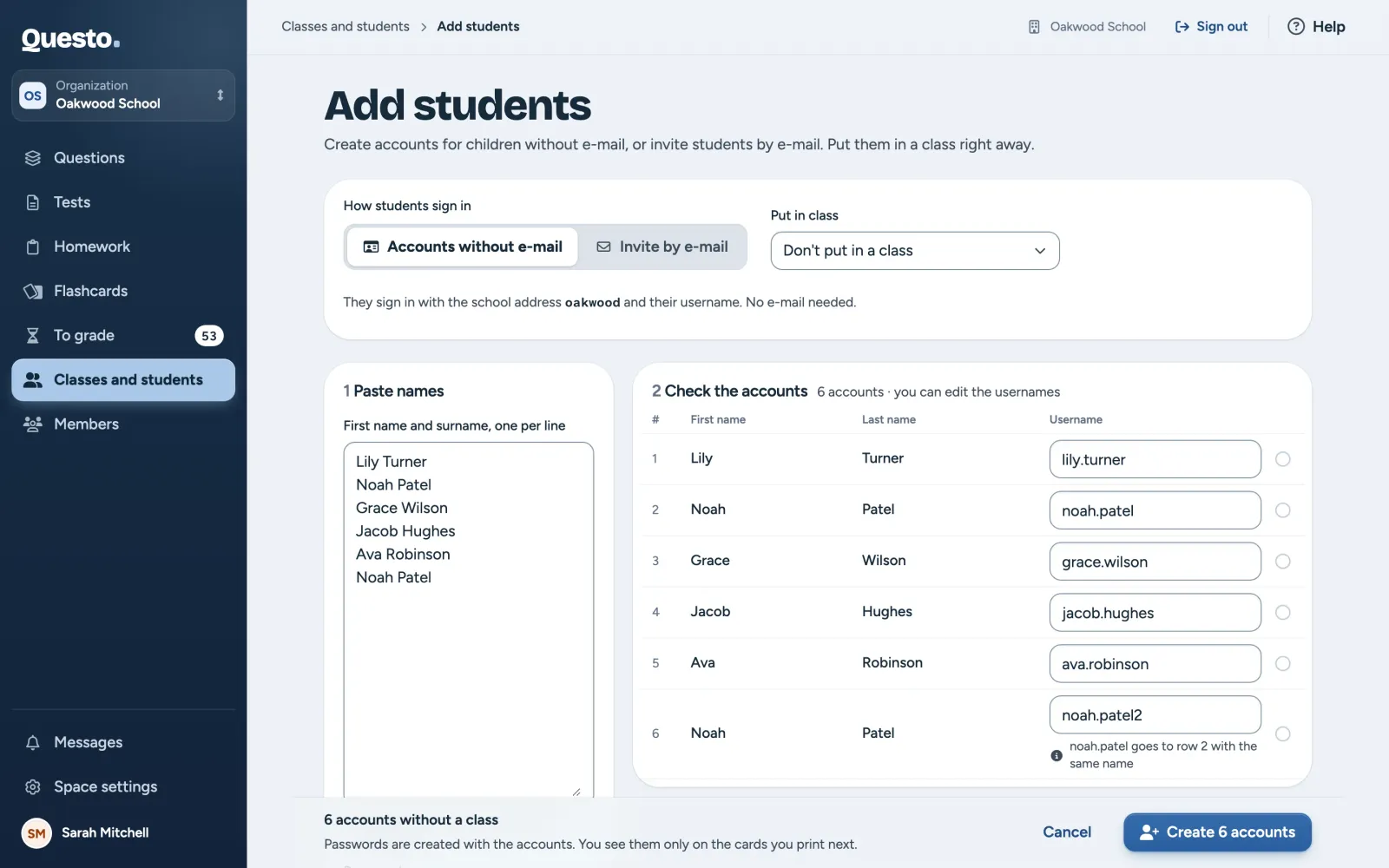
A username may hold only lowercase letters without diacritics, digits, dots and dashes, 2 to 40 characters. It is unique across the whole school.
Once created, you see a summary with the address where students sign in, and buttons:
- Print … cards opens the cards for printing (see Sign-in cards),
- Copy as a table copies names, usernames and passwords, into a spreadsheet for example,
- Add more students, and Go to class … or Back to Classes and students.
You see the passwords only now. Print the cards before you close or reload the page. If it is too late, set new passwords for the students; see Cards again.
On a phone you create one student at a time: fill in the first name, surname and username, and Create the account and show the card shows the card to hand over right away. A whole class is easier on a computer.
Invite by e-mail
- On “Add students”, choose Invite by e-mail (in a personal space it is the only way).
- In “Put in class”, pick a class, create a new one, or choose “Don’t put in a class”.
- Paste the addresses into “Students’ e-mails”, separated by commas, semicolons or new lines. A whole spreadsheet column works too.
- Each address shows right away what will happen to it (see below). Fix an invalid one with Fix.
- At the bottom, click Add … students (with a class chosen, Add … students to and the class’s name).
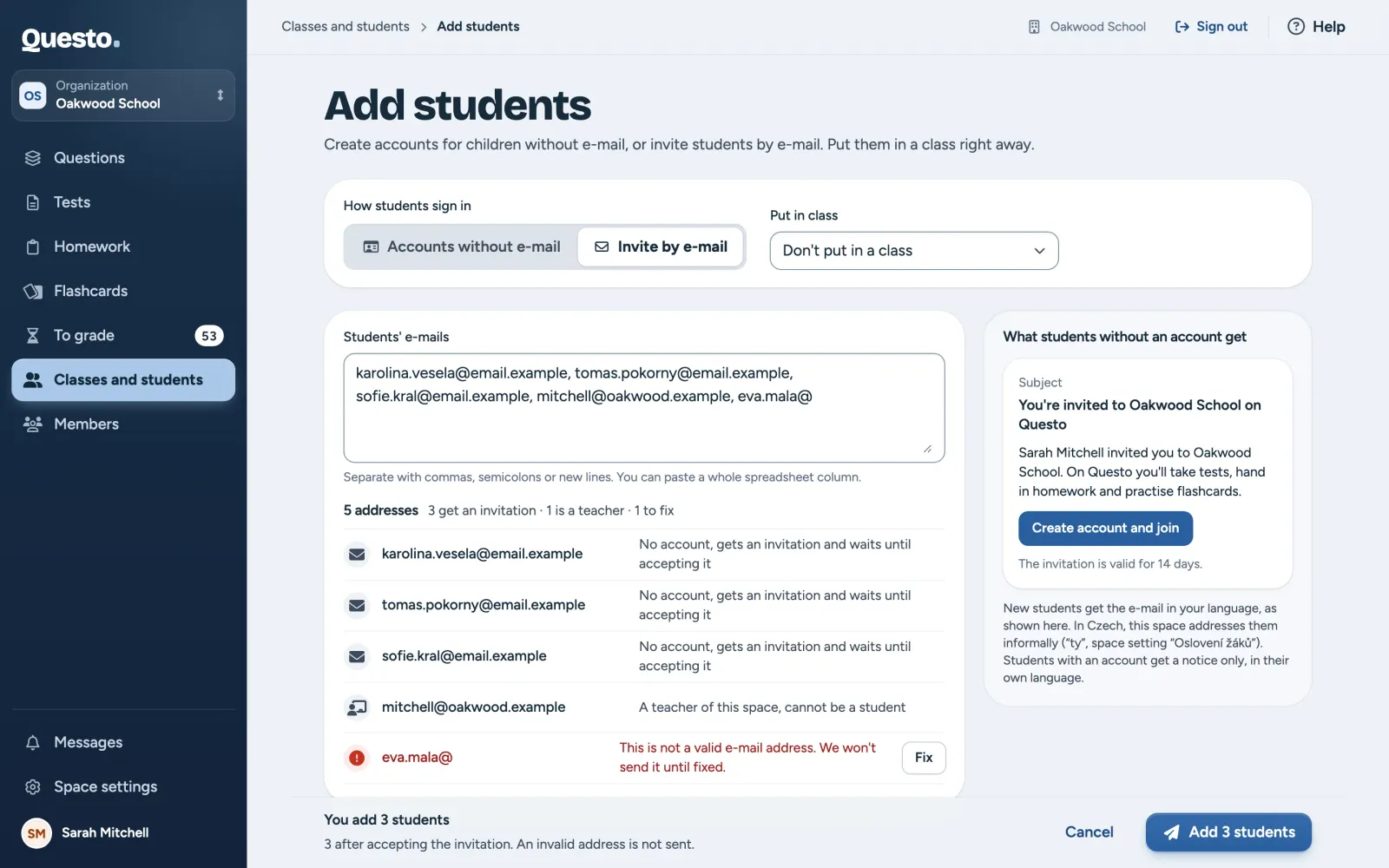
What happens to an address:
- has a Questo account: a student at once, who gets a notice only,
- has no account: gets an invitation and waits in the Awaiting acceptance filter until accepting it,
- already a student of the space: just added to the chosen class (without a class nothing changes),
- an archived student: not added; restore them in the Archived filter,
- a teacher of this space: cannot be a student,
- not a valid address: not sent until you fix it.
On the right, “What students without an account get” shows the invitation e-mail as students receive it. New students get it in your language, the language of the teacher who invites them. The invitation is valid for 14 days. In Czech it addresses students informally or formally, following the space’s Addressing students setting. Students who already have a Questo account get a notice only, in their own language.
Pending invitations
Students who have not accepted their invitation yet are on Classes and students in the Awaiting acceptance filter. Tests you send them in the meantime wait for them.
- Send again on the row sends the invitation once more, valid for another 14 days.
- A student’s detail holds Copy invitation link and Cancel invitation. Whoever opens a copied link confirms the e-mail once more, so sending the invitation again is usually quicker.
Adding students straight to a class
In a class’s detail, Add students opens a picker of the space’s students. Tick the ones you already have, or type a new student’s e-mail and confirm it with Enter. For children without e-mail, the picker links to creating accounts.
Students already in the space can also be added in bulk: tick them in “All students” and click Add to class.