Sign-in cards
How to print cards for students without e-mail, how to print them again with new passwords, and how a student signs in with one.
On this page5
Students whose account you create without e-mail in an organization sign in with a card. The card holds everything they need to sign in. How to create such accounts is in Adding students. Students with e-mail need no card, and a personal space has no cards.
What is on a card
- the student’s name and the school’s name,
- “School address”: the school’s short name, which the student types when signing in (also shown in Space settings),
- “Username” and “Password”,
- where to sign in: questo.slothworks.io/student (Czech cards say questo.slothworks.io/zak), and a reminder never to tell anyone the password.
In Czech, the card addresses students informally or formally, following the Addressing students setting. An A4 page holds 10 cards, which you cut along the lines.
Printing right after creating accounts
- Once the accounts are created, click Print … cards.
- The “Login cards” page opens with a preview of the A4 pages.
- Click Print. The browser’s print dialog opens. Only the card sheet is printed, without the rest of the app.
- Back returns you to the summary of the new accounts.
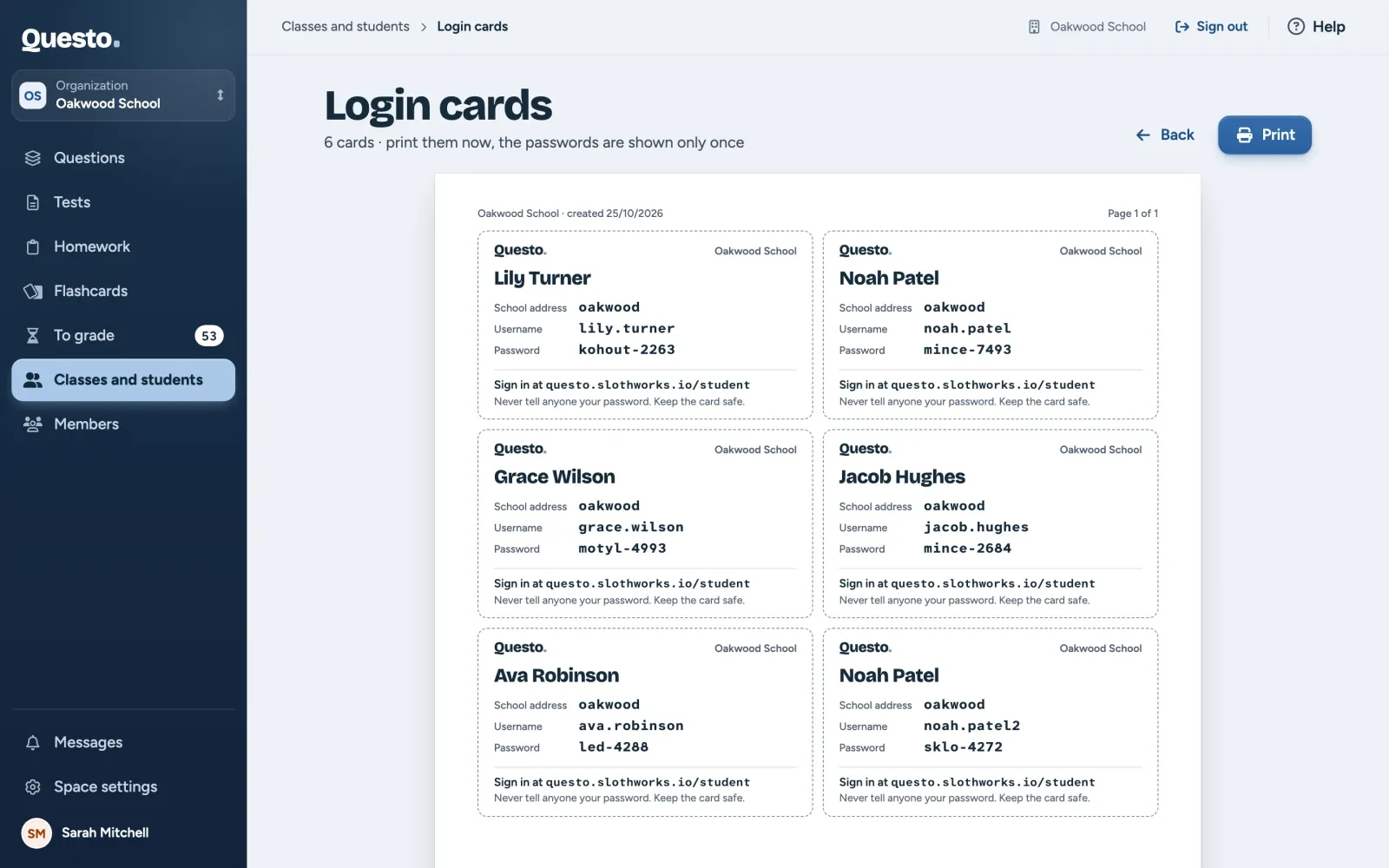
Passwords are shown only once, right after they are set. They disappear when the page reloads, and the page then says “The passwords are gone”. Set new passwords for the students in that case (see below).
Cards again: new passwords
We do not store passwords in readable form, so printing cards again means setting new passwords. The current passwords stop working at once, and the students then sign in only with the new card.
For a whole class or part of it:
- In the class’s detail, open More class options (three dots) and choose Print cards.
- Under “For whom”, choose all students with a username, or “Chosen students only” and tick them.
- Click Set … new passwords and print. The “Login cards” page opens.
For students from different classes: tick them in “All students” and click Print cards in the bar at the bottom. Students who sign in with e-mail get no card.
A lost card or a forgotten password
- Open the student’s detail and click Set a new password.
- Choose the kind of password (“A word and four digits” or “Six digits”), or Enter your own password (at least 8 characters).
- Click Set new password. The student is signed out and the old password stops working.
- You see the new password right away. Print login card prints it, or Copy password copies it so you can hand it over another way.
A student who forgets their password finds, under “Forgot your password?” in the student app, the advice to ask their teacher. Any teacher of the school can set it.
How a student signs in
- The student opens the address from the card, questo.slothworks.io/student. It leads to the sign-in of the student app.
- Under “How you sign in”, they choose Card.
- They fill in “School address”, “Username” and “Password” from the card and click Sign in.
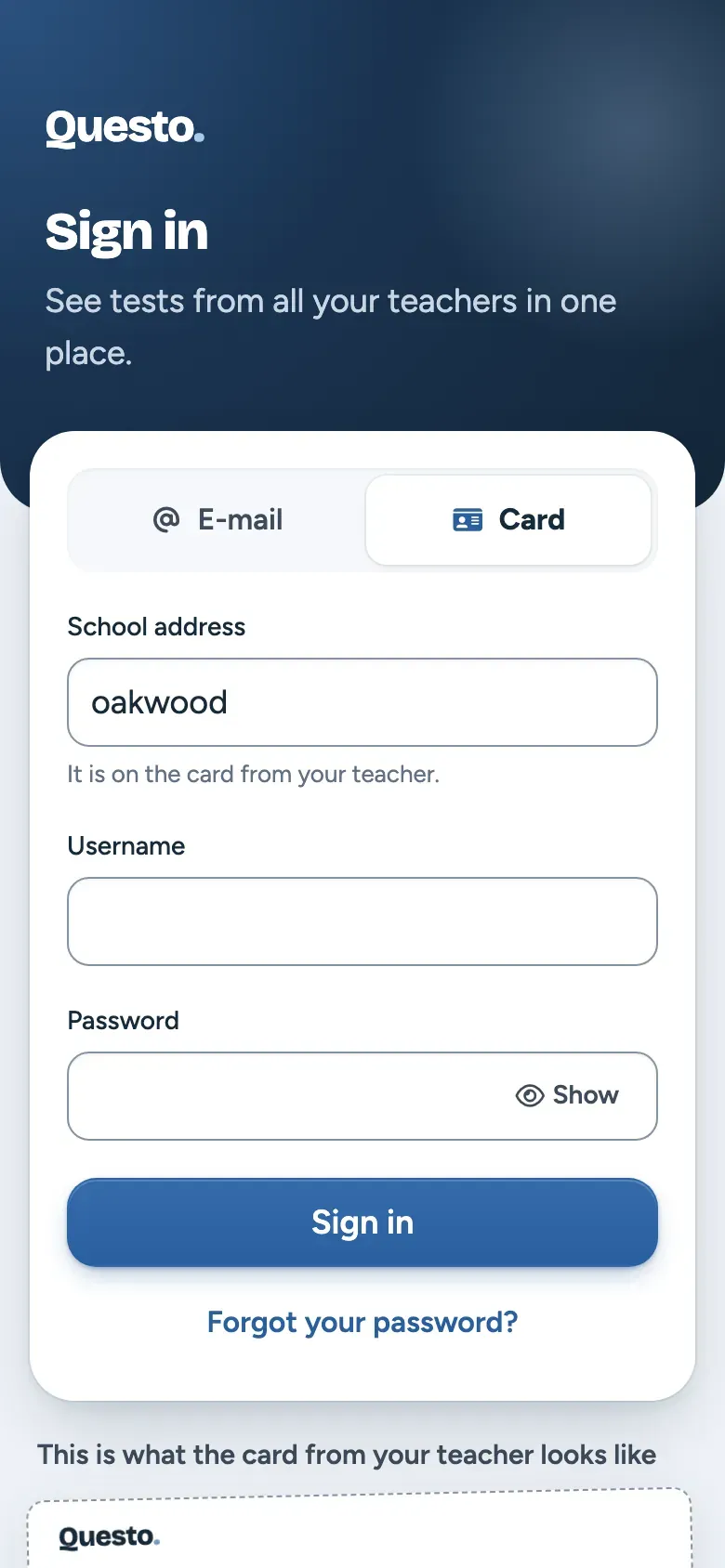
Capital and small letters matter in the password. The student app remembers the last way of signing in on a device.
In Space settings, Copy link copies your school’s sign-in link. Whoever opens it has the school address filled in already. It suits a school website or an e-mail to parents.