Question sets
How to add questions to a set, have AI suggest them, move them, and share, download or delete a set.
On this page6
A set holds the questions on one topic, such as “The water cycle” or “Present perfect”. In a set you add and edit questions and pass them on to tests. Creating a set is described in Questions.
Opening a set
- Open Questions.
- On the Question sets tab, click the set’s card.
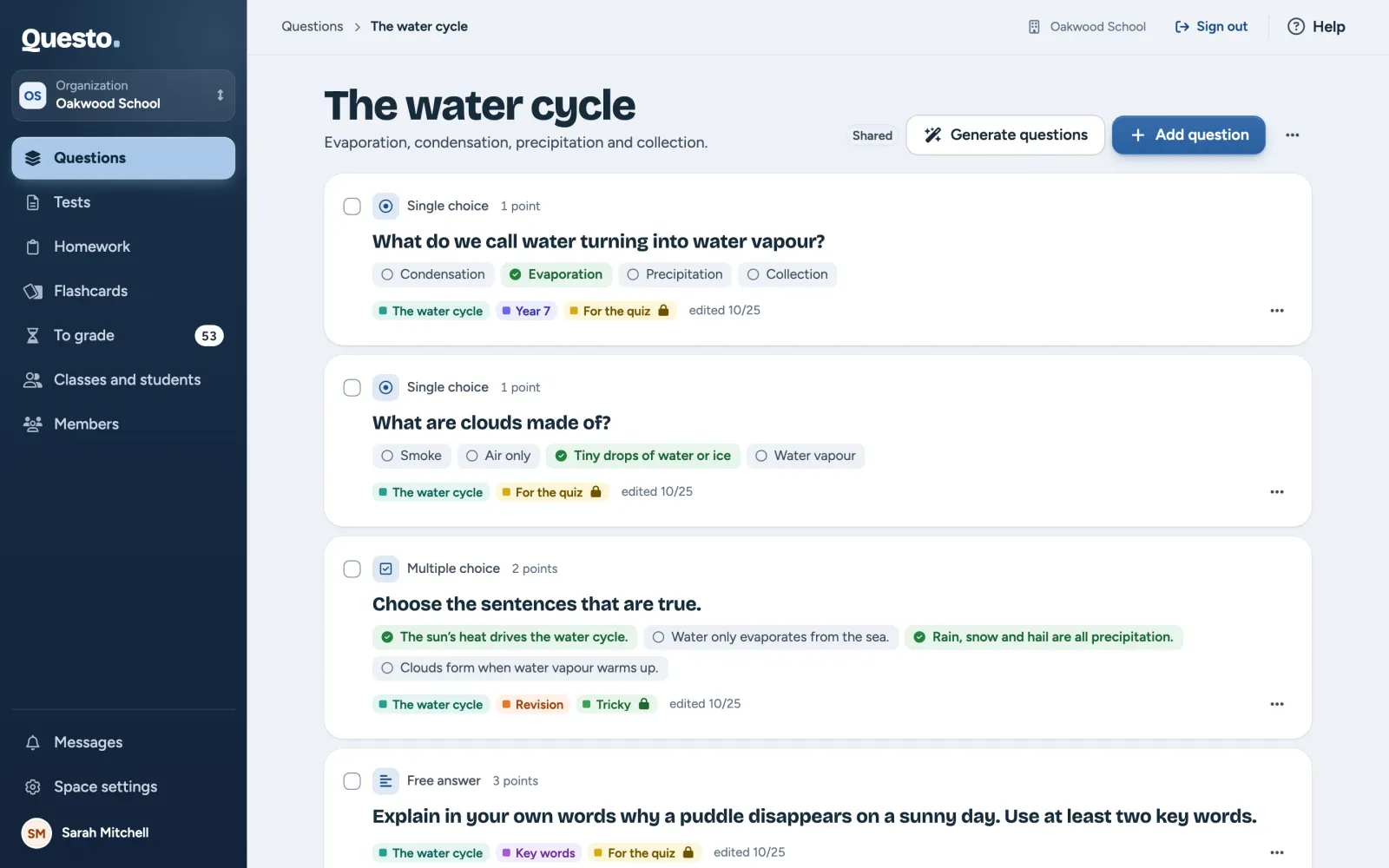
At the top you see the set’s name and description (or its number of questions) and, in an organization, whether it is “Private” or “Shared”. Below are the set’s questions: the prompt, the type, the correct answers in short, labels, points and when each was last edited.
Adding a question
- In the set, click Add question.
- Choose the question type and click Continue.
- Fill in the prompt, the answers and the scoring, and click Save question.
The question is saved to the set and you can use it in any test or homework. Everything the editor offers, and the question types, is described in Editing a question.
Only the set’s author and the space’s owners and admins add questions to it. In a colleague’s shared set you see the questions and can use them, but there is no Add question button.
Questions with AI
Questo can suggest questions on a topic. You review and edit the suggestions before they are saved.
- In the set, click Generate questions.
- Under “Based on”, choose “Topic” (as specific as possible, for example “Irregular verbs in the past simple”) or “Study text” (paste the text, 20,000 characters at most; the questions then ask only about what is in it).
- Set how many questions of each type you want (20 at most in total). Choose the “Language of the questions” and, if you like, a “Level”, for example “year 7”.
- Click Generate suggestions. It usually takes under a minute.
- Go through the suggestions. Ticked suggestions are saved; untick the ones you do not want. Edit opens a suggestion in the editor; saving it there puts it straight into the set.
- Click Save (the button shows how many questions). The questions are added to the set. Start over takes you back to the request.
Check the correct answers of the suggestions above all. AI can make mistakes.
Generating questions comes with the plans that include AI. When your space’s plan does not, the window says so; a plan with AI is ordered in Space settings, under Plan and usage. The window also shows how much of your plan’s AI allowance is used this month.
Working with the questions of a set
Click a question to open it in the editor. Its menu (three dots) offers:
- Edit (or View when you cannot edit it),
- Add to test: to a new test or to a draft in progress,
- Move to a set: to another set you can edit (find it by searching for its name), or to a new private set you name right there,
- Duplicate: a copy of the question in the same set,
- Delete question.
Tick several questions to work with them at once. A bar appears at the bottom with Add to test, Move to a set and Clear selection.
A deleted question disappears from the bank, but tests students have already taken keep it. Their results do not change.
Editing, downloading and deleting a set
The More set options menu (three dots at the top right) offers:
- Edit set: the name, description, colour and, in an organization, the visibility.
- Download as a file: the set is downloaded as a
.questo.jsonfile. In another space, upload it with Import set on the Questions page. - Copy to an organization: only in a personal space, when you are a member of an organization. The set is copied with its questions, labels and pictures; in the organization it is your private set and its labels your personal labels. In your personal space nothing changes.
- Delete set: deletes the set and its questions. If the set has questions, you confirm by typing its name. Tests students have already taken keep the questions.
Only someone who can edit the set (its author, or an owner or admin of the space) sees Edit set and Delete set.
Sharing in an organization
In an organization every set has a visibility:
- “Private”: only you and the space’s admins see it.
- “Shared”: every teacher in the space can use it.
You set the visibility when creating the set, or later with Edit set. Questions moved to another set take its visibility. Colleagues add questions of a shared set to their own tests and can attach their own labels to them; only the author and an owner or admin of the organization can change them.
In a personal space only you see your sets, so there is no visibility choice.