Editing a question
The question types, how to fill in the prompt, answers and scoring, what the explanation and labels are for, and how students see the question.
On this page7
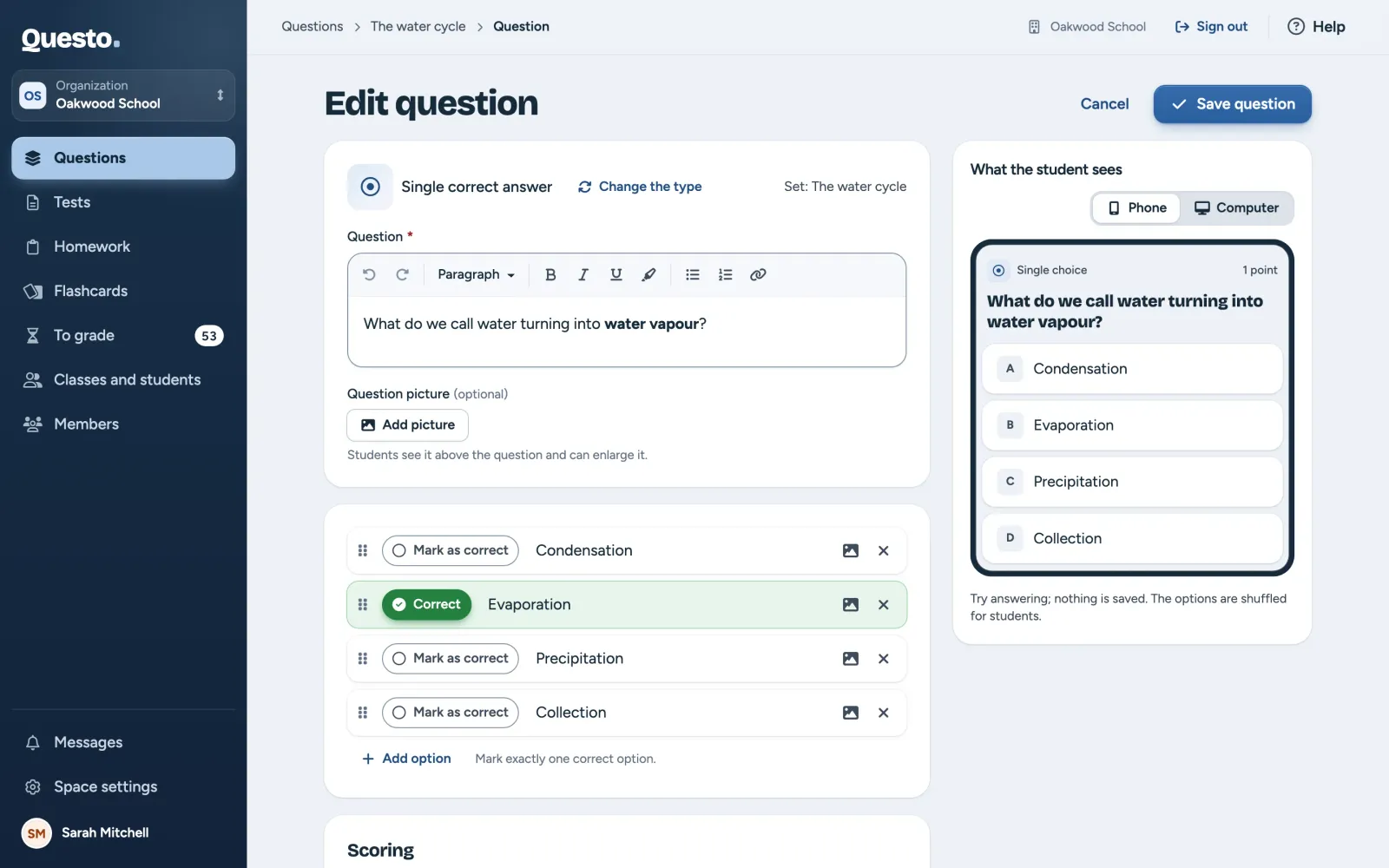
Every question in Questo is created and edited in the same editor. On the left you fill in the prompt, answers and scoring; on the right you see how students will see the question. The editor opens from a question set (see Question sets).
A new question
- Open the set the question belongs to.
- Click Add question.
- In the window with the question types, choose one and click Continue.
- Fill in the prompt and the answers. After your first attempt to save, the editor marks anything missing.
- Click Save question. Cancel takes you back to the set without saving.
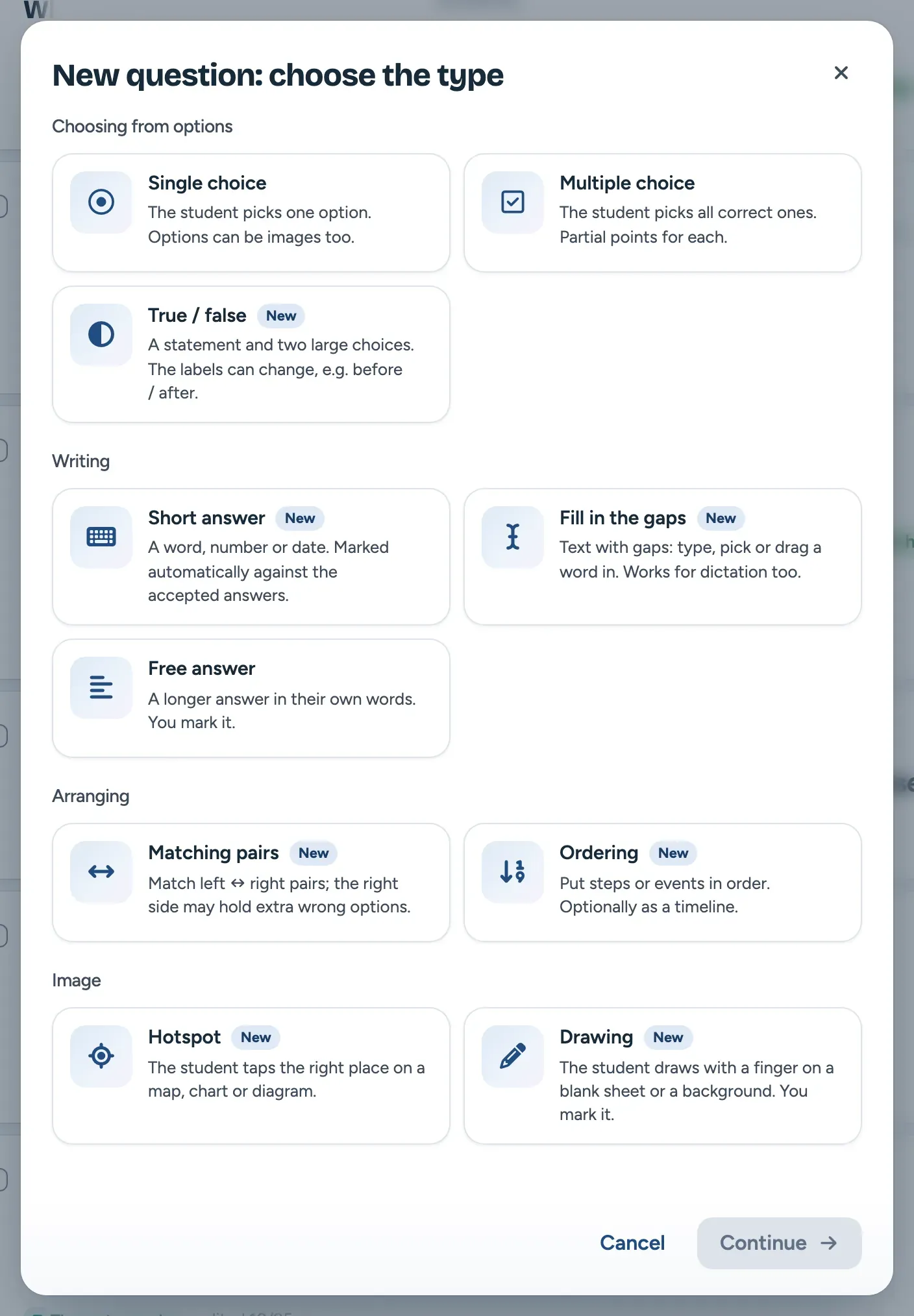
To open an existing question, click it in its set. Change the type in the editor switches the question type.
Question types
The types come in four groups:
- “Choosing from options”
- “Single correct answer”: the student picks one option. Options can be pictures too.
- “Multiple correct answers”: the student picks all correct ones and gets partial points for each.
- “True / false”: a statement and two choices. The labels can change (Yes / No, Before / After or your own).
- “Writing”
- “Short answer”: a word, a number or a date, marked automatically against the accepted answers. For a number you set a tolerance and a unit.
- “Fill in the gaps”: select a word in the text and click Make a gap. The student types the gap, picks from options or drags a word from a word bank into it. You can upload a recording to the question, for a dictation for example.
- “Free answer”: a longer answer in the student’s own words. You mark it.
- “Arranging”
- “Matching pairs”: a left and a right column; the right side may hold extra wrong options.
- “Ordering”: put steps or events in order, optionally as a timeline with years.
- “Image”
- “Hotspot”: the student taps the right place on a map, chart or diagram. You draw the areas as a circle, rectangle or polygon.
- “Drawing”: the student draws with a finger or a mouse on a blank surface, squared paper or your own image. You mark it.
On the Free plan you can create single correct answer, multiple correct answers and free answer questions. The other types come with the paid plans and are included in an organization’s trial. The type picker marks them.
Questo marks every type except free answer and drawing automatically once the test is handed in. More in Grading tests.
Prompt, answers and scoring
- Write the “Question” in the field at the top; you can format the text (bold, italics, lists, a link). For fill in the gaps it is an “Instruction” above the text, for true / false a “Statement or question”.
- Add a picture to the question with Add picture (PNG, JPG, GIF, WebP or SVG). Students see it above the question and can enlarge it.
- Below the prompt you fill in the answers the type needs: options and the correct one, accepted answers, gaps, pairs, items or areas in the image.
Under “Scoring” you set the “Points for the question”. For fill in the gaps, matching and ordering you also choose how points are counted: partly for each correct part, or “All or nothing”. Partial points are rounded to half a point. “Time for the question” helps estimate how long a test takes; Questo adds it up into an estimate when you compose a test.
Explanation, model answer and labels
- Students see the optional “Explanation” under their answer once it is evaluated.
- A free answer has a “Model answer” instead, which students see in the test result once it is evaluated, and a “Grading note”: what to look for when grading. Students never see the note.
- Choose “Labels” from the list, or create one with New label. How labels work in an organization is described in Questions.
The student’s preview
Next to the form is the preview “What the student sees”. Switch it between Phone and Computer. You can try answering in the preview; nothing is saved. In a test the order of the options may be shuffled for students.
Editing and tests already sent
A change to a question in the bank shows in the tests you are still composing. A test you have already sent keeps its questions locked as they were when it was first sent, so changes in the bank do not affect it. The same goes for deleting a question: tests students have already taken keep it.
Only the question’s author, or an owner or admin of the space, can edit a question. For everyone else it opens read-only. In an organization you can still add your own labels to it and save them with Save my labels.
When the space’s paid plan ends, questions of the paid types become read-only. You can still view and try them, and they keep working in tests already sent. Duplicate as a free answer makes a copy you can edit; Show the plans opens the space settings.
Opening a question from a test
In a test’s results or while composing it, you can open a question in the bank (Show the question in its set, Open in its set). Questo looks the question up and opens it in the set it is in now, even if someone has moved it meanwhile. If someone deleted it, or you can no longer see it, the page says “The question is no longer in the bank” and Go to the bank takes you back. Tests already sent keep the question as it was.